
The GPS track from your watch
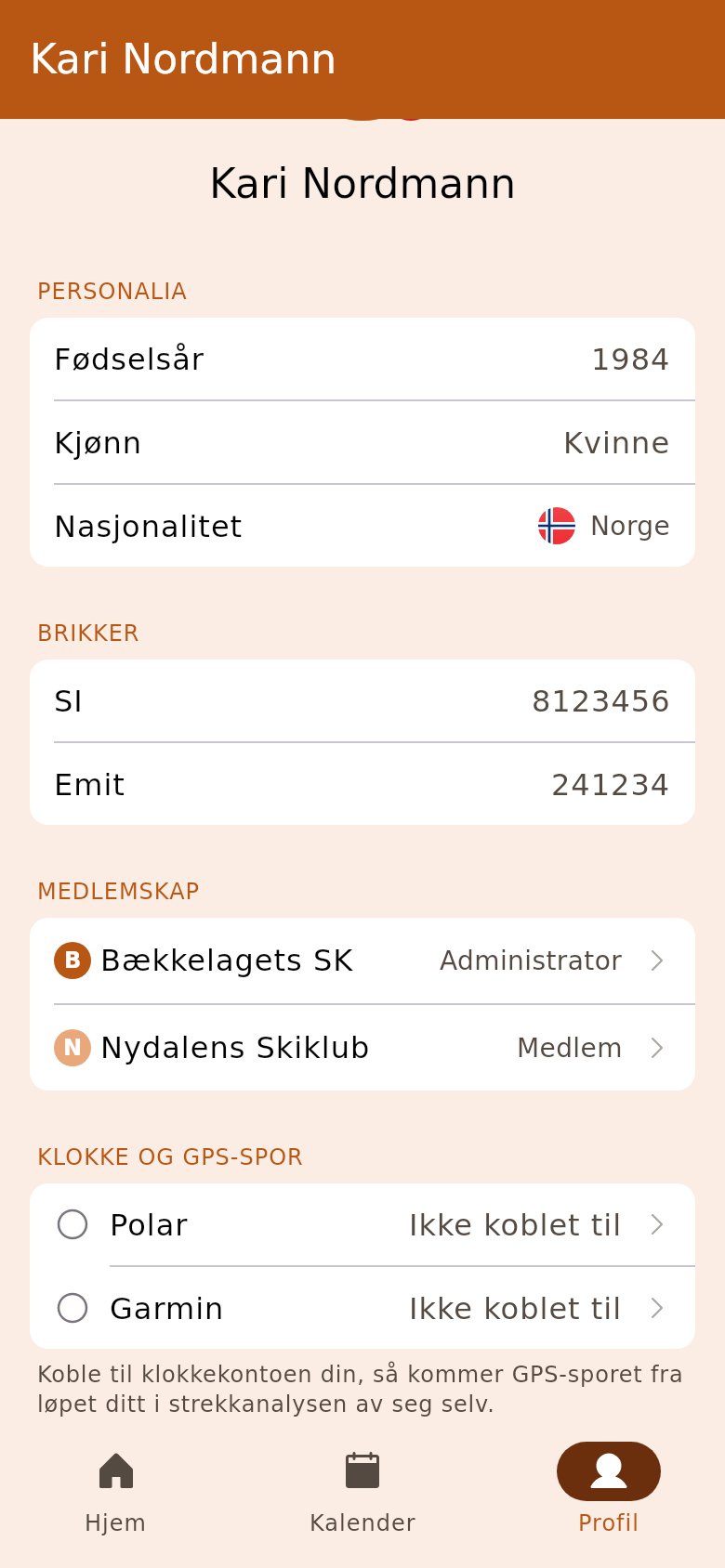
Connect your watch account to OriGo, and the track from your race lands in the split analysis by itself — you don’t have to upload anything. You do it once, on your person page.
1. Open your person page
Section titled “1. Open your person page”Go to «Profile» and tap your name under Eventor. Under «Watch and GPS tracks» are the makers you can connect. Tap yours.
2. Accept sharing and connect
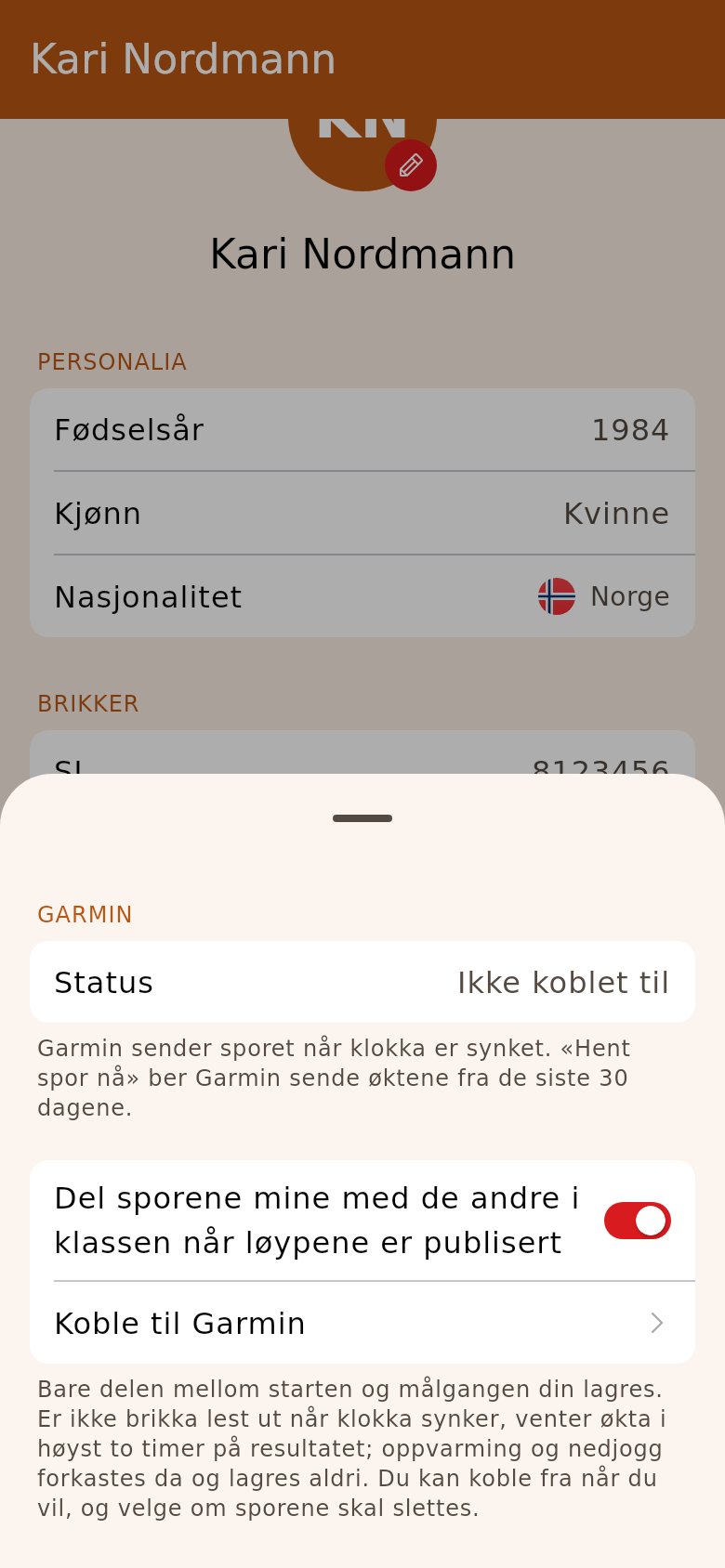
Section titled “2. Accept sharing and connect”Turn on «Share my tracks with the others in my class once the courses are published», and tap «Connect Garmin» or «Connect Polar». You log in with Polar or Garmin and allow OriGo to fetch your workouts.
3. Run with your watch
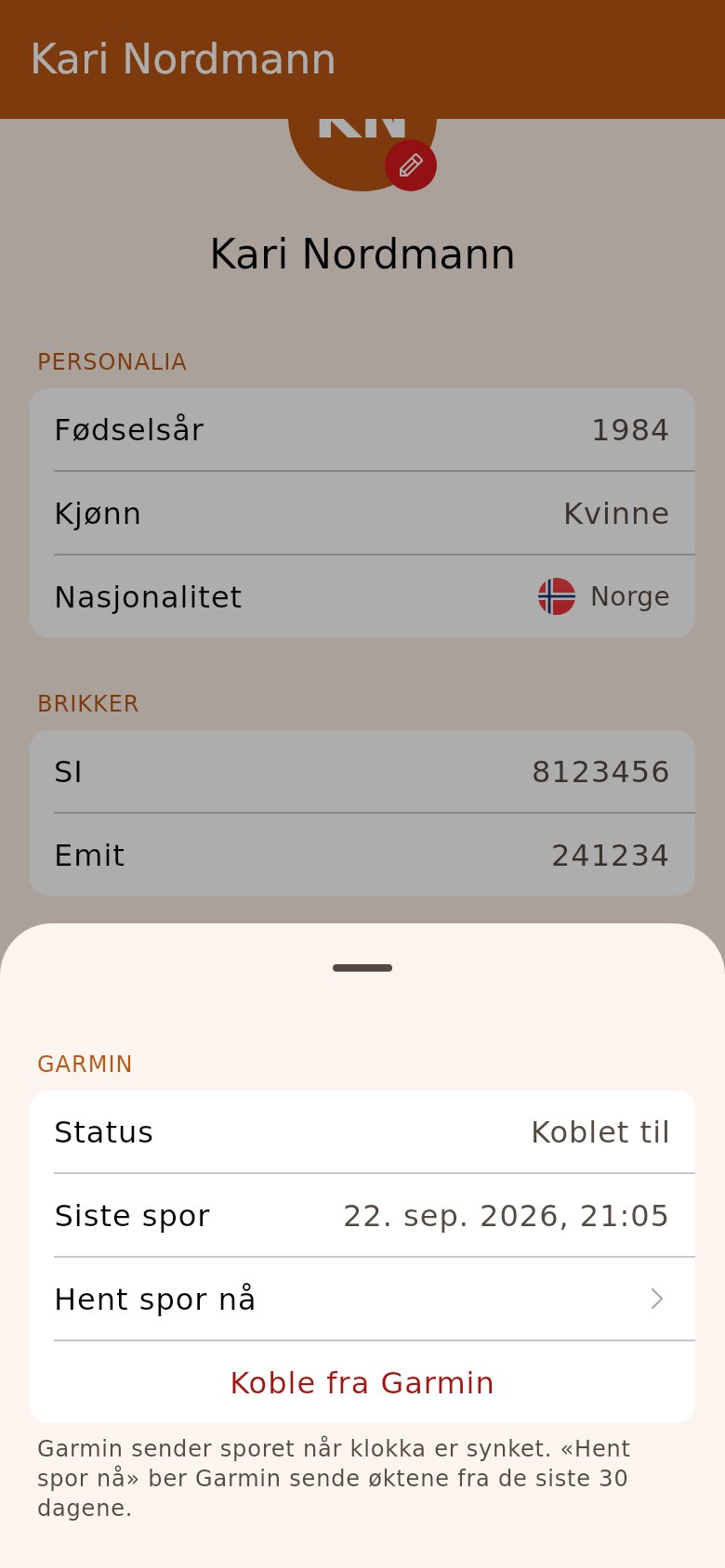
Section titled “3. Run with your watch”After the race, sync your watch as usual. OriGo finds the workout that matches the start time, finish time and place of your race, and puts the track on your result. «Latest track» shows when one last arrived.
The track didn't arrive?
- OriGo needs both your start time and your finish time. If your chip is read a little after the watch has synced, the track arrives shortly after. If the result came more than two hours later, tap «Fetch tracks now» on your person page.
- The watch must have run for most of the race and been at the start when you started.
- Polar only gives workouts from the last 30 days, and only those synced after you connected. For an older race, upload a GPX file on your entry in the result list.
- If you have uploaded a GPX file yourself, it stays. The watch does not replace it.
Apple Watch and Apple Health
In the OriGo app on iPhone there is also «Apple Health». Turn on sharing, tap «Connect Apple Health» and allow OriGo to read your workouts and routes. You don’t log in anywhere.
- The track is fetched when the watch has synced with the iPhone, even when OriGo is closed. If your chip hasn’t been read yet, the track arrives shortly after it is.
- Only the workouts around your races are read, and only the route from just before the start to just after the finish leaves the phone.
- The track didn’t arrive? Open the Health app, tap your profile picture, choose «Apps» and «OriGo», and check that workouts and routes are turned on.
- Another watch that puts its route in Apple Health works the same way. Garmin doesn’t do that itself: there you upload the GPX file on your entry.
Several Eventor profiles
If you have profiles in several federations, connect the same watch account to each of them. The track lands on the race whichever federation it belonged to.
Who sees the track, and how do I disconnect?
- You see your track straight away. The others see it once the courses are published, and only in classes that show times. Under the map it says which watch the track came from.
- «Disconnect» on your person page stops the fetching. You choose whether the tracks already fetched are kept or deleted.
- Strava cannot be connected: Strava doesn’t let anyone but you see your track.