

Set up a race from Eventor
A race in the official calendar comes in from Eventor by itself, with its classes and entries. You add the courses, draw the start list and publish. You must be an organiser in the club in Eventor, and the club must have a licence.
1. Open the race
Section titled “1. Open the race”The races your club organises are on the start page. Tap your race.
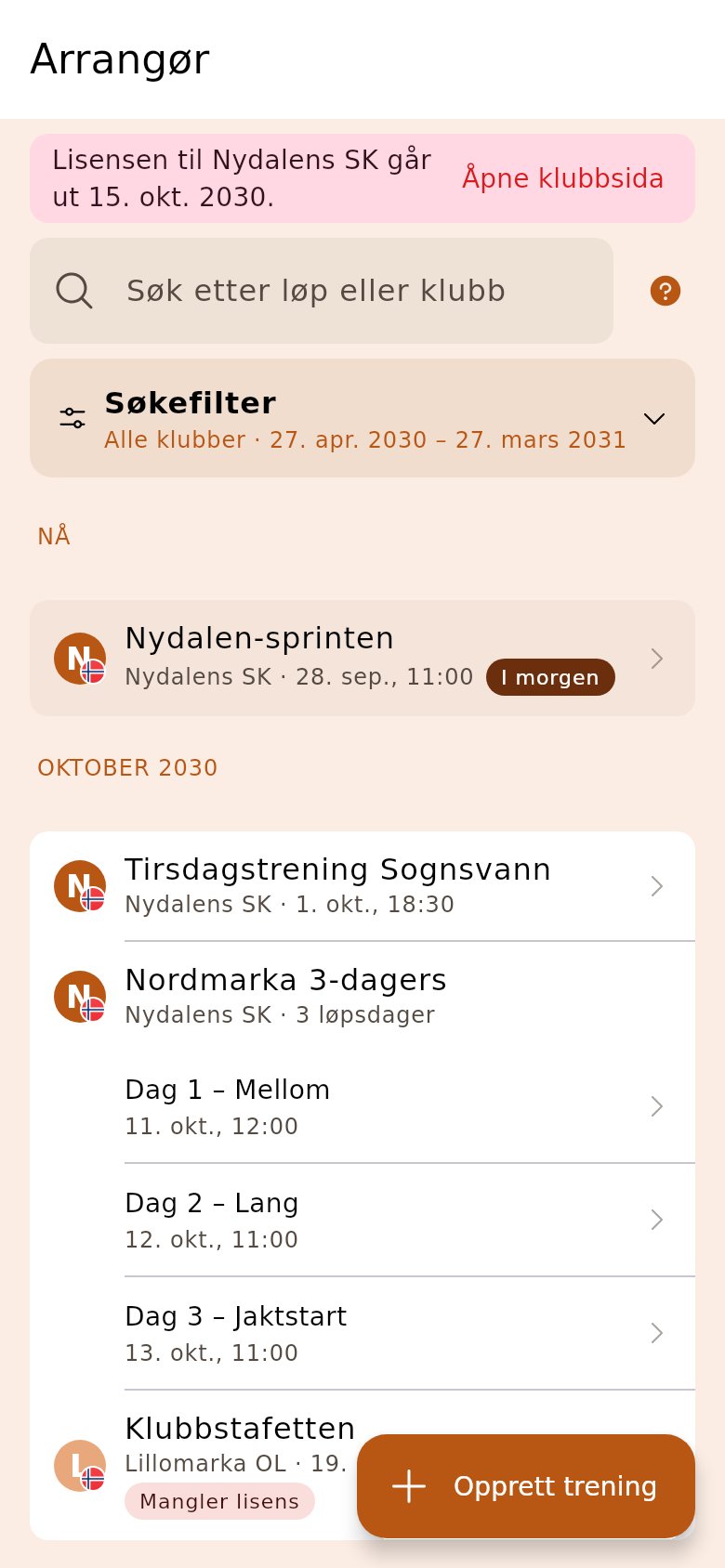
2. Tap «Set up the event»
Section titled “2. Tap «Set up the event»”The card is in the side menu, and shows how far you have come. The wizard fetches the entries from Eventor every time it opens.
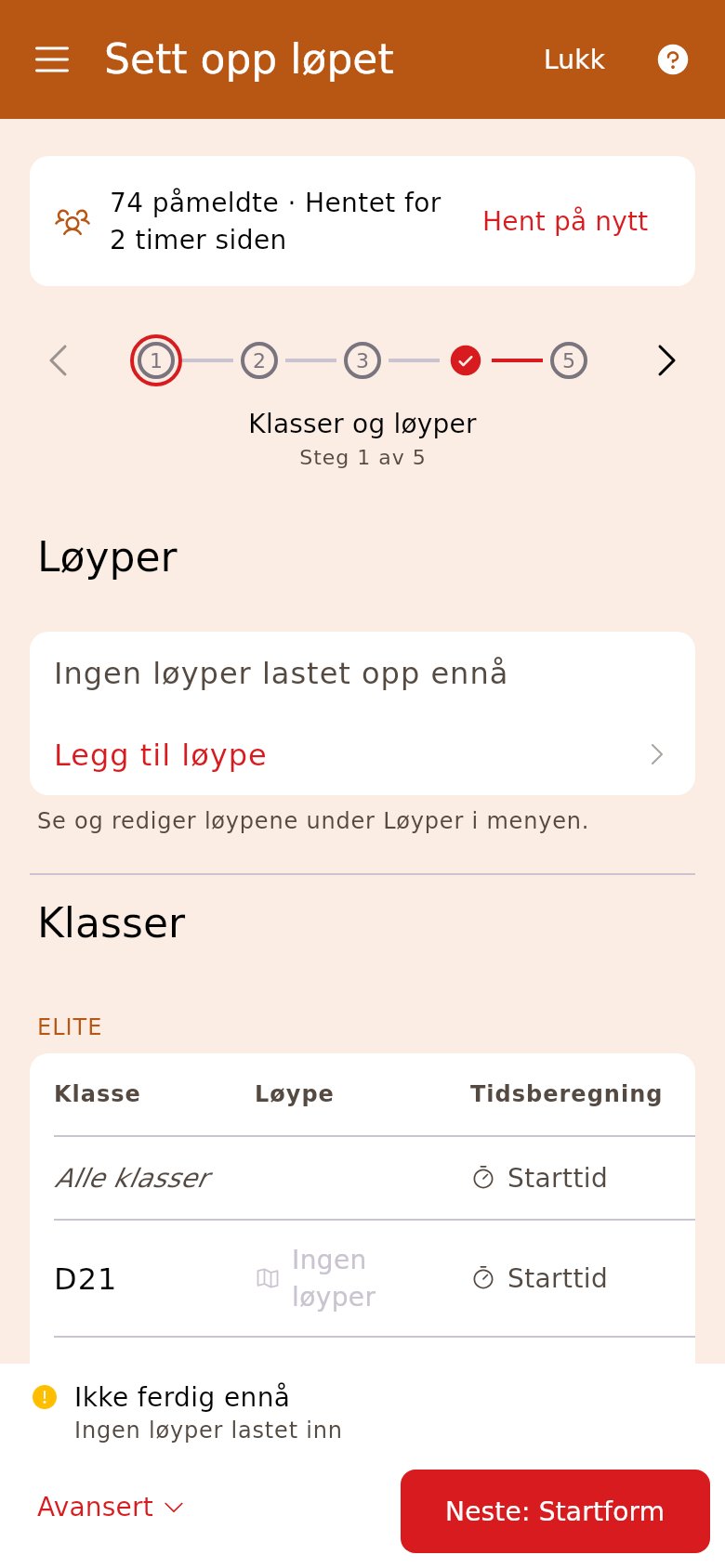
3. Upload the course file
Section titled “3. Upload the course file”Tap «Add course» and choose the file from Purple Pen or OCAD. The classes are linked to the courses the file names. A class with «Not selected» in red has no course — tap it and choose one.
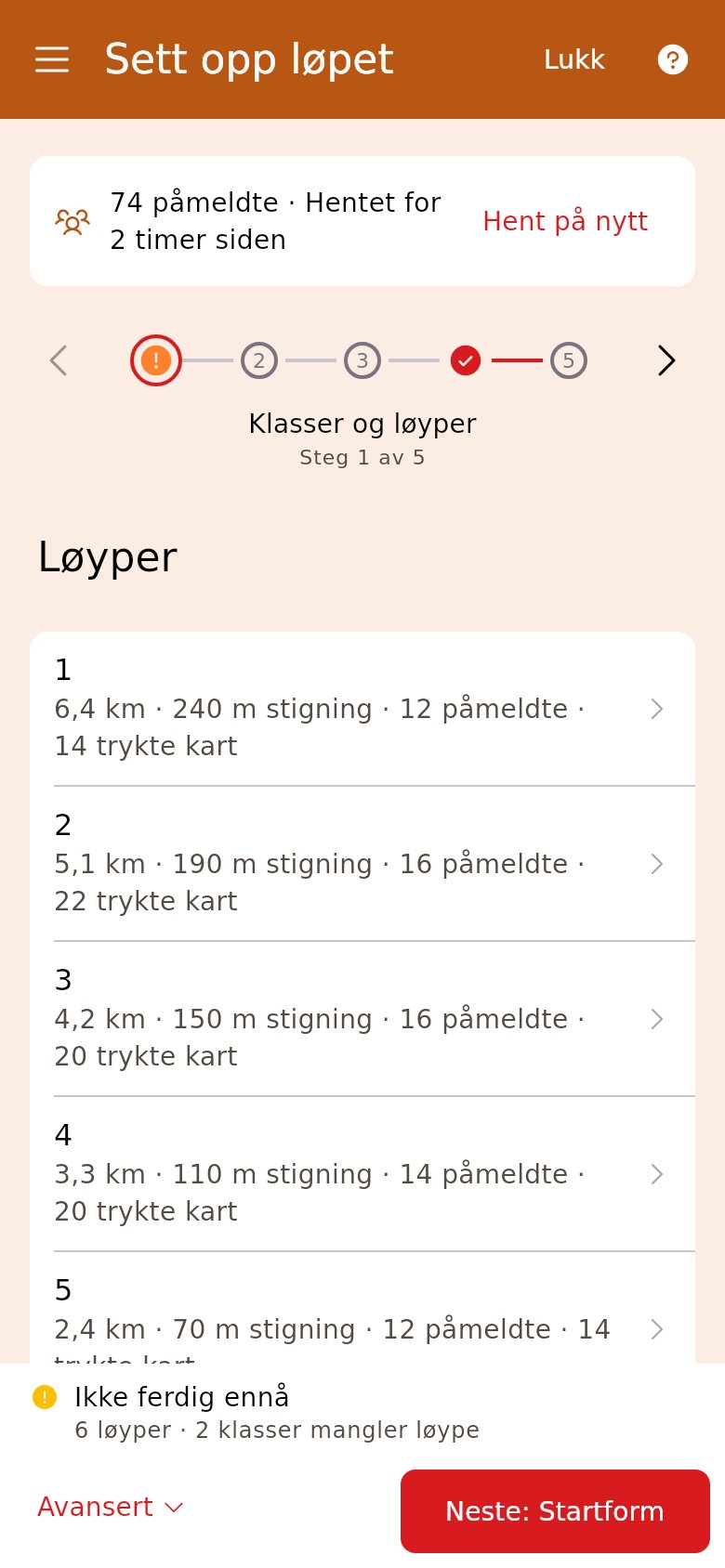
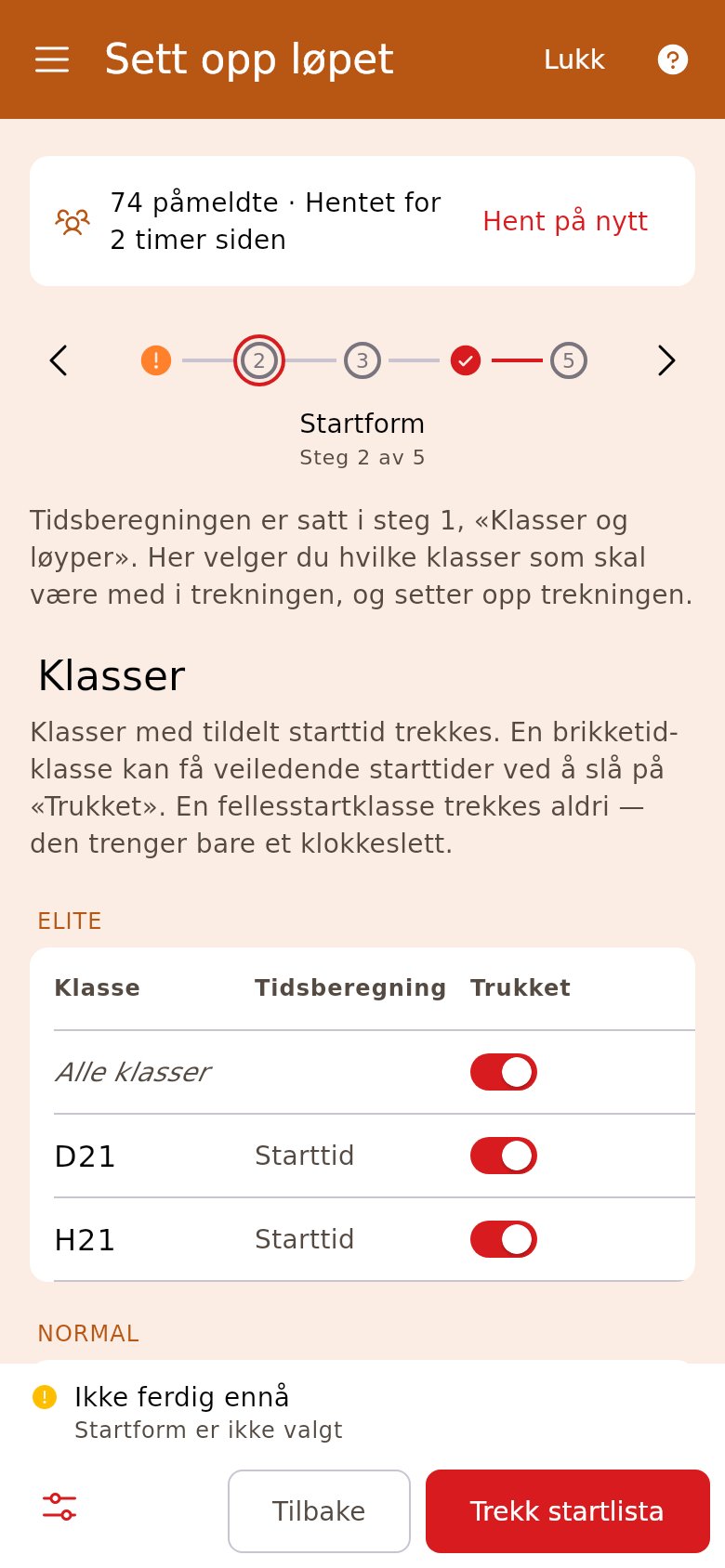
4. Draw the start list
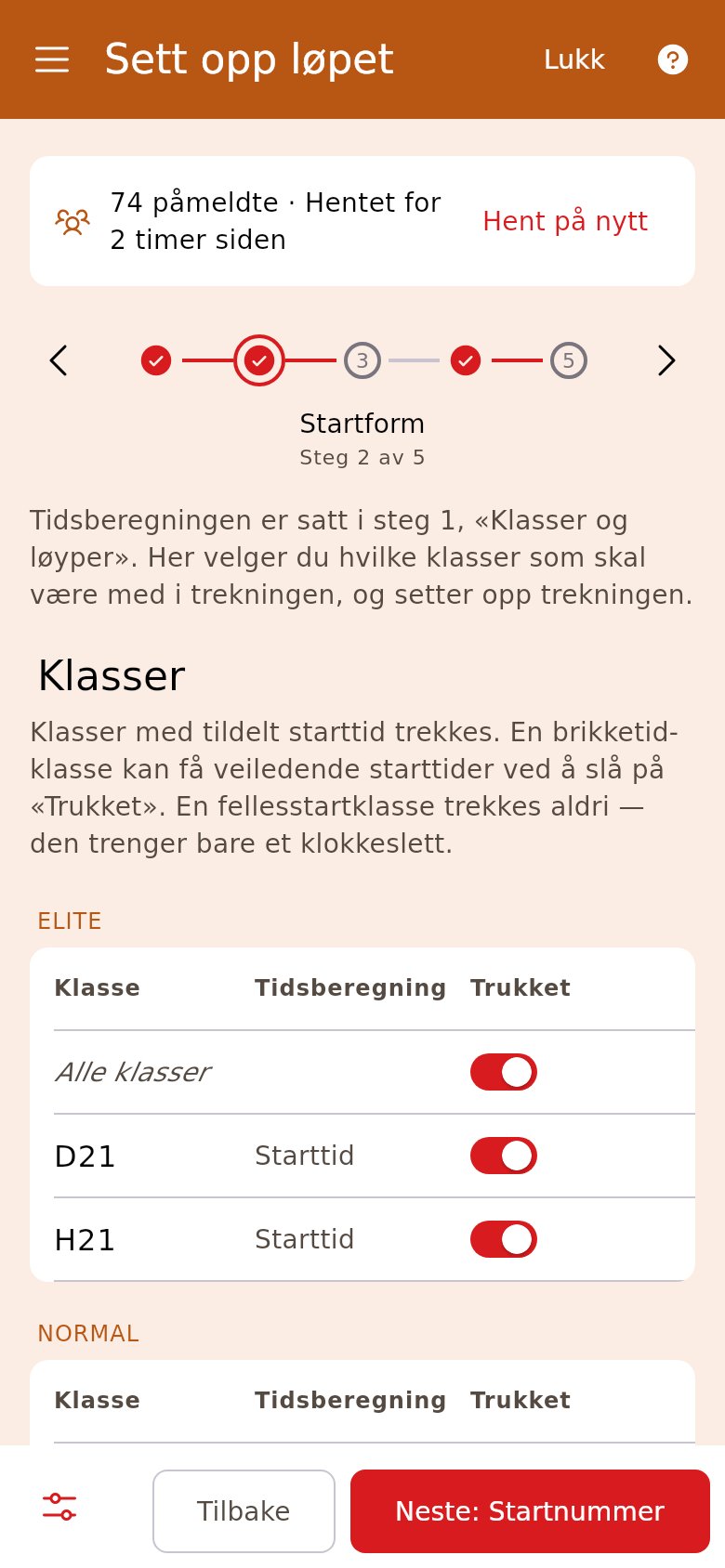
Section titled “4. Draw the start list”In «Start form», the classes that should have a drawn start time are turned on. Check the first start and the interval, and tap «Draw the start list».
5. Look through the draw
Section titled “5. Look through the draw”Afterwards it says how many got a start time. «Start list (PDF)» gives the list class by class, so you can check it before it is published.
6. Assign bibs
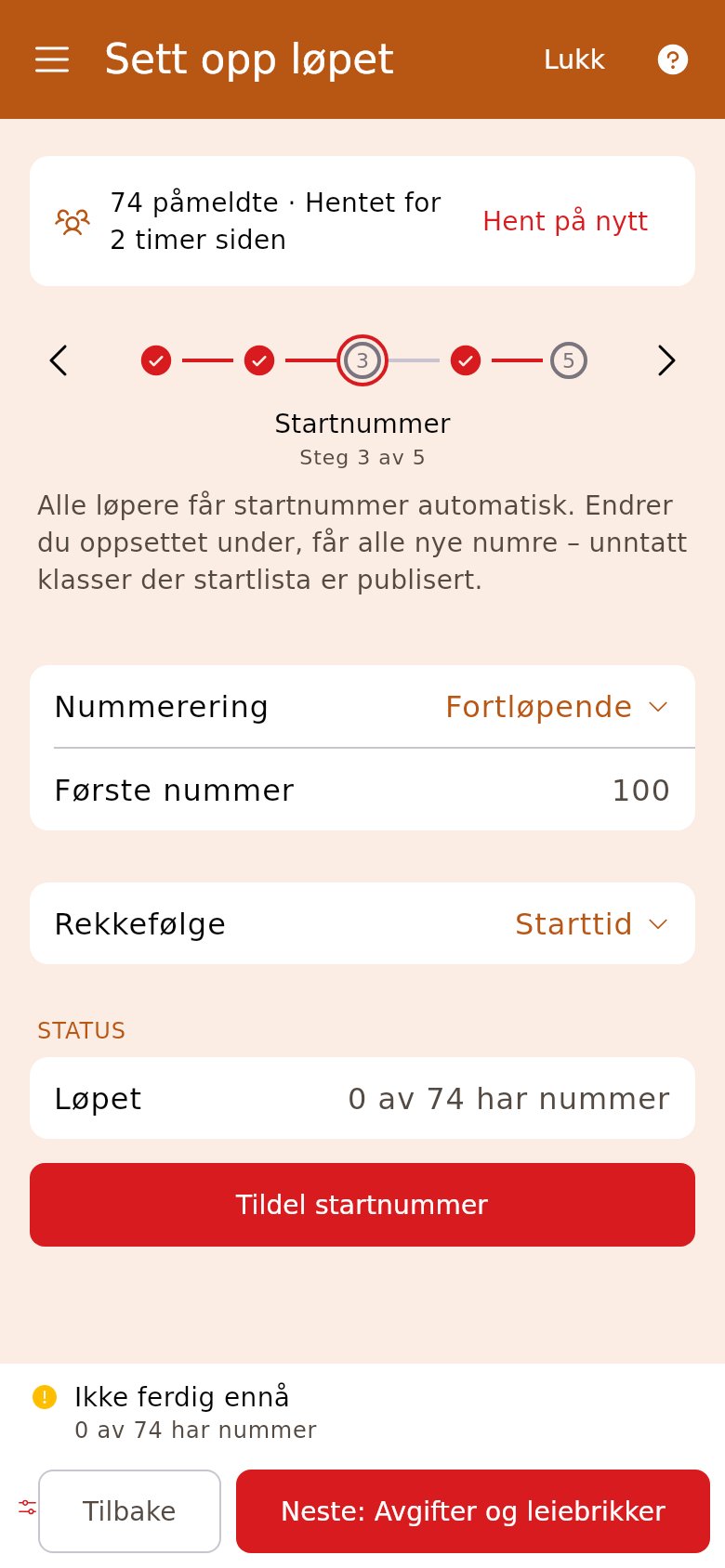
Section titled “6. Assign bibs”The default is consecutive numbers from 100, and new entries get a number by themselves. If it says someone is missing a number, tap «Assign bibs».
7. Publish
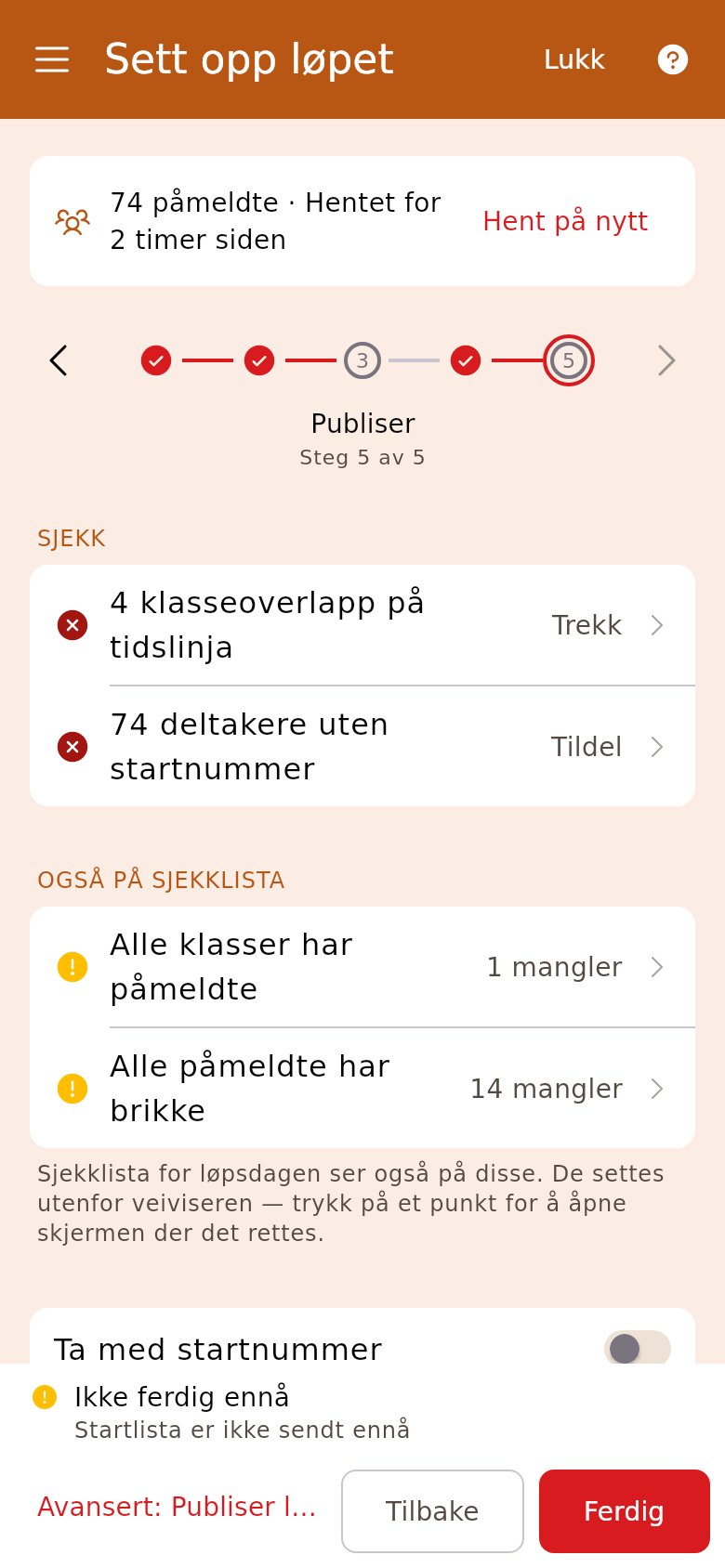
Section titled “7. Publish”The checklist at the top shows what is missing — tap a row to fix it. Then tap «Publish the start list to Eventor» and turn on «Publish the start list» for the app. The runners get their start time as a notification.
8. Publish in the OriGo app
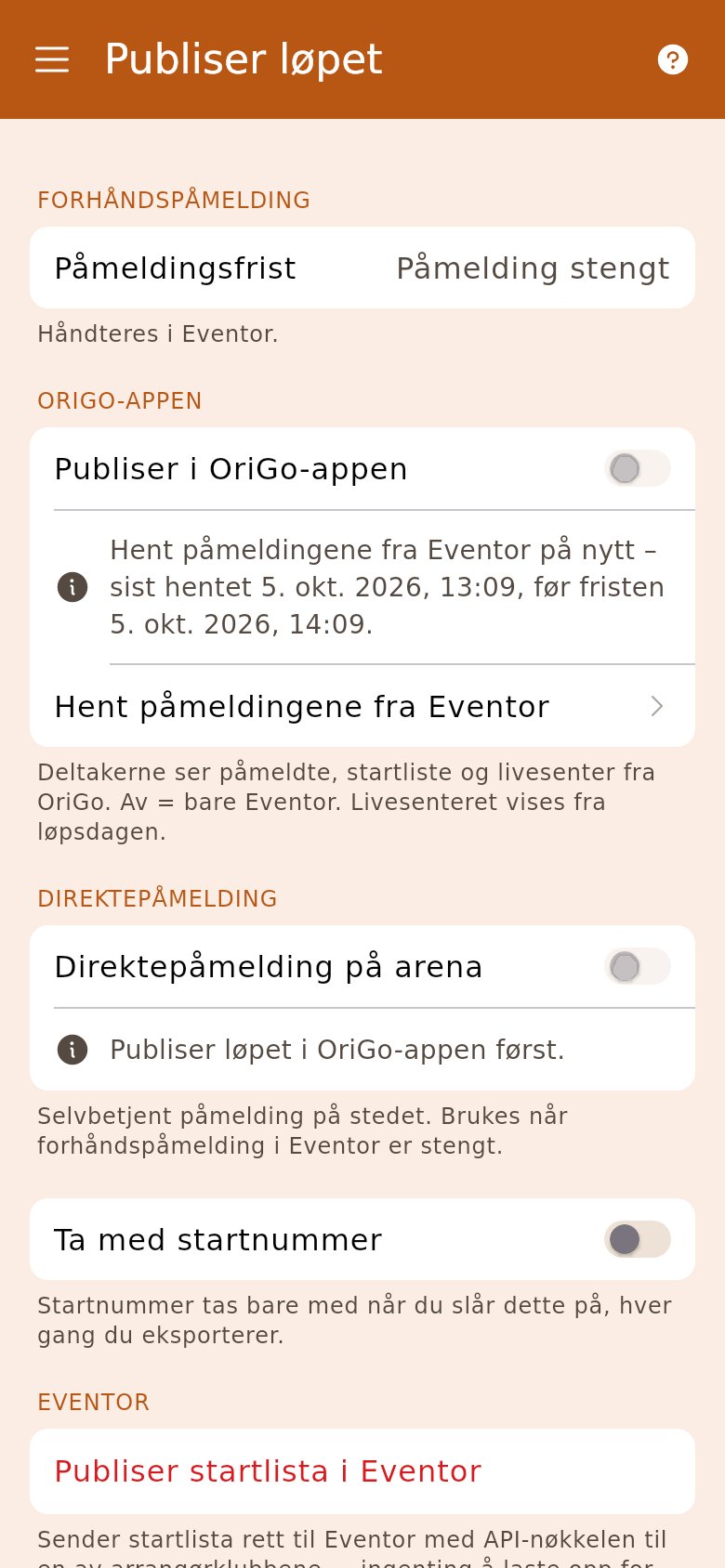
Section titled “8. Publish in the OriGo app”When entry in Eventor has closed, tap «Fetch entries from Eventor» and turn on «Publish in the OriGo app». The participants then see the entries and the start list in OriGo, and the live centre on race day.
Forked courses, fees and multi-day races
If a course is forked, the «Forking» step appears after «Bib». A race from Eventor also gets the «Fees and rental chips» step. A multi-day race shows one day at a time, with the day selector at the top of each step.