

Log in and connect Eventor
You can enter without an account, but with an OriGo account connected to your Eventor user, your races are gathered in one place: entries, start times and results are under «My races», and you don’t have to log in with Eventor every time you enter. The order doesn’t matter — you can connect after you have entered.
1. Create an account or log in
Section titled “1. Create an account or log in”Open the menu and choose «Profile». If you are new, choose «Create an account» at the top and type your e-mail address. If you have an account, log in with your e-mail address. Google and Apple work both ways. You can also log in straight from the front page, under «My races».
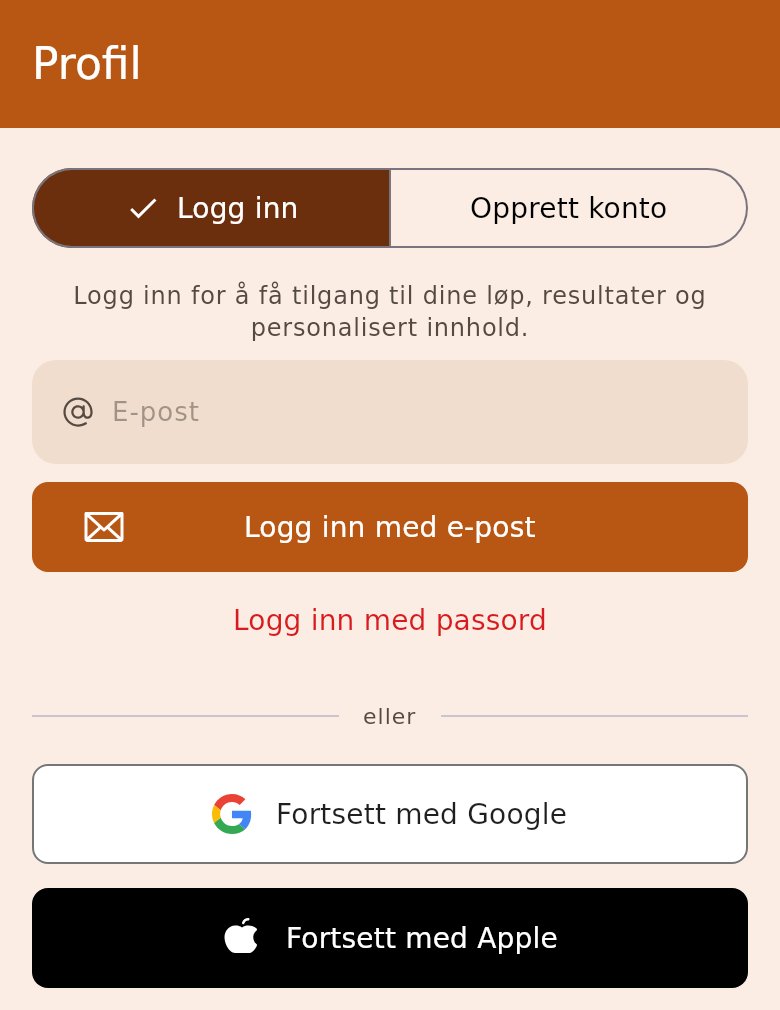
2. Type the one-time code
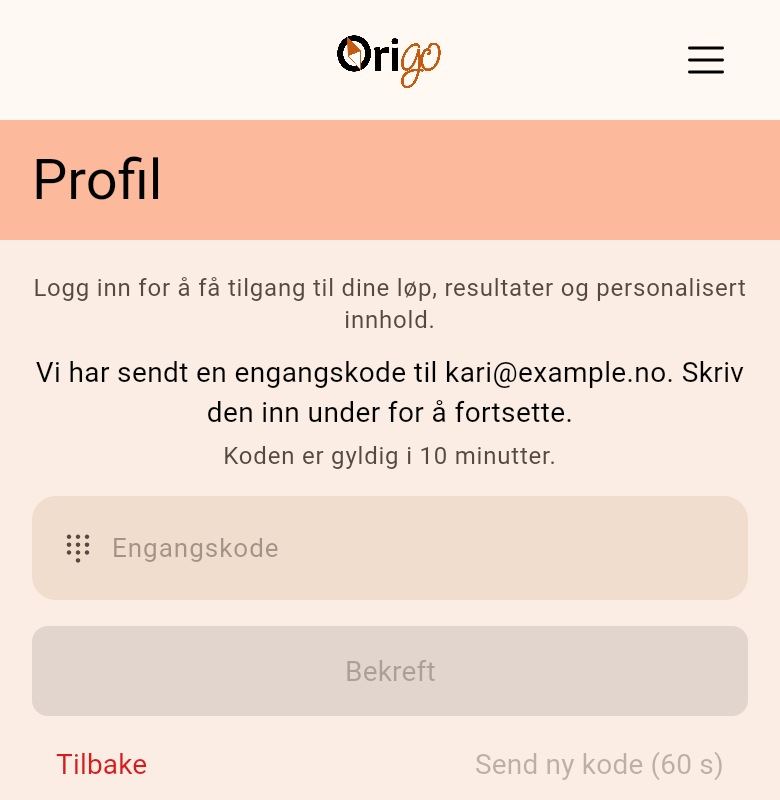
Section titled “2. Type the one-time code”When you tap «Create an account» or «Sign in with email», you get a one-time code in your inbox. Type it in: you are logged in as soon as the code is filled in. The code is valid for 10 minutes, and «Send a new code» gives you a new one if it doesn’t arrive.
3. Add your Eventor user
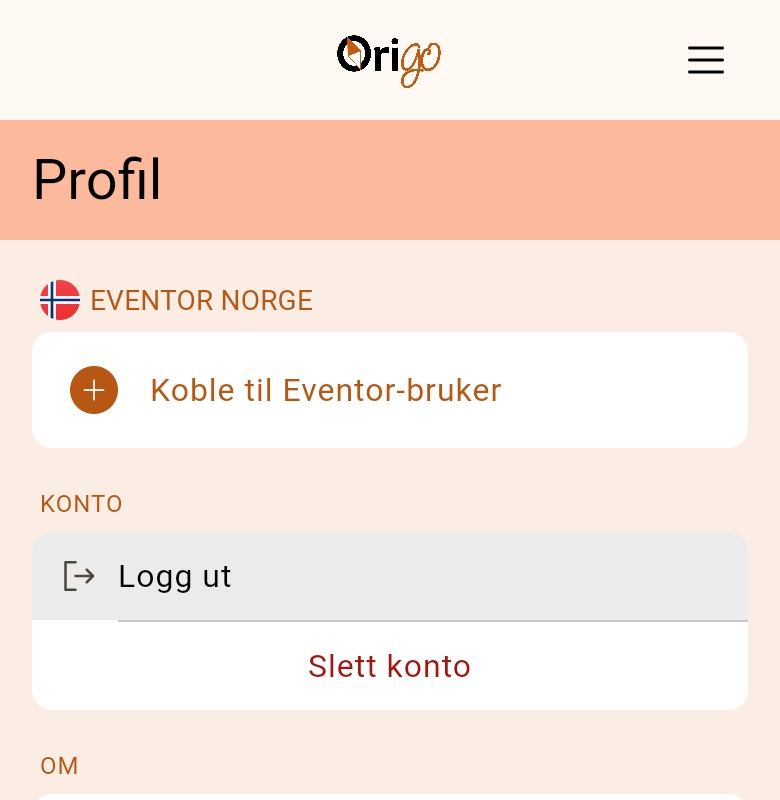
Section titled “3. Add your Eventor user”Now you are logged in. Under «Eventor Norge», tap «Connect Eventor user». You can also connect straight from the front page, under «My races».
4. Log in with Eventor
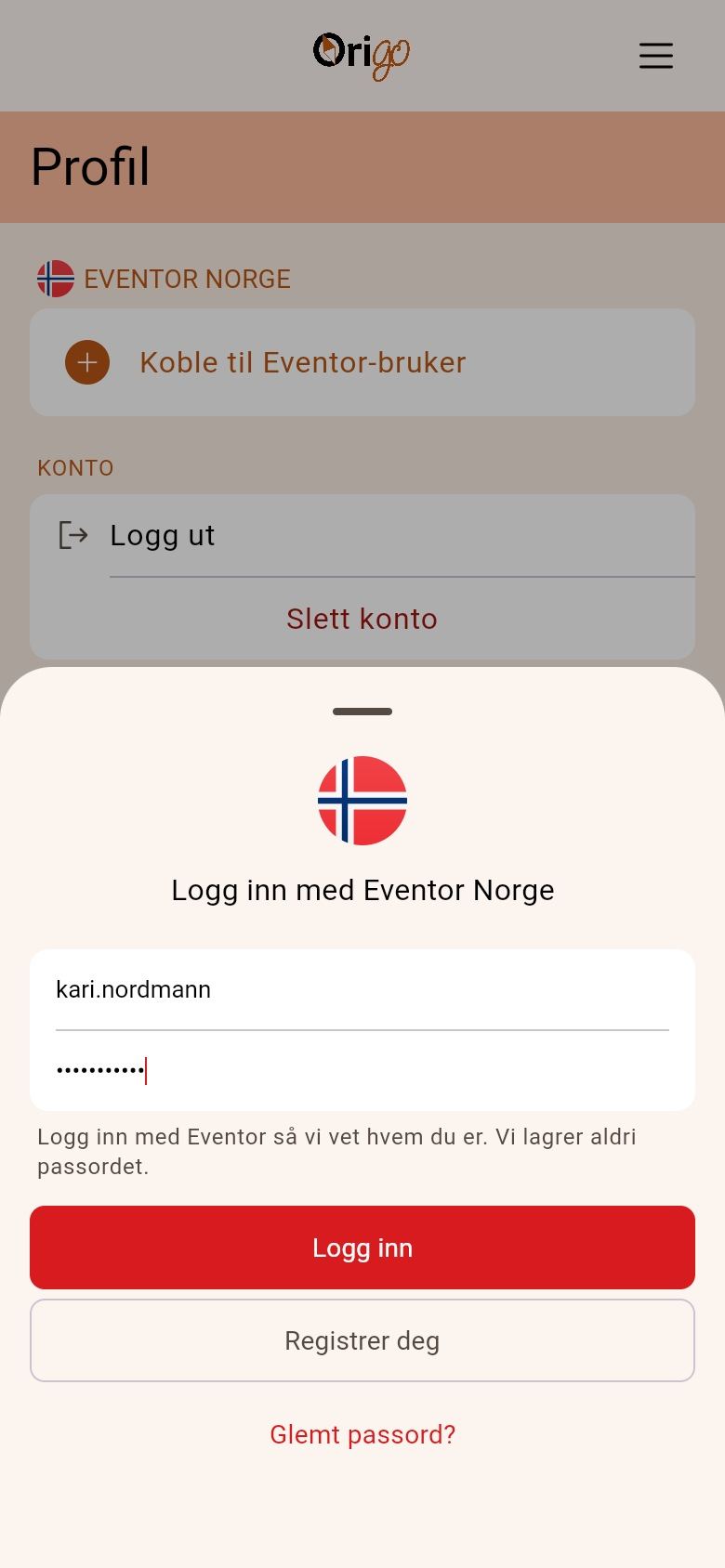
Section titled “4. Log in with Eventor”Type your Eventor username and password and tap «Log in». OriGo fetches your name, club and chip number from Eventor, but never stores the password. If you have no Eventor user, you can register from there.
5. The Eventor user is connected
Section titled “5. The Eventor user is connected”Your name and club now appear under «Eventor Norge».
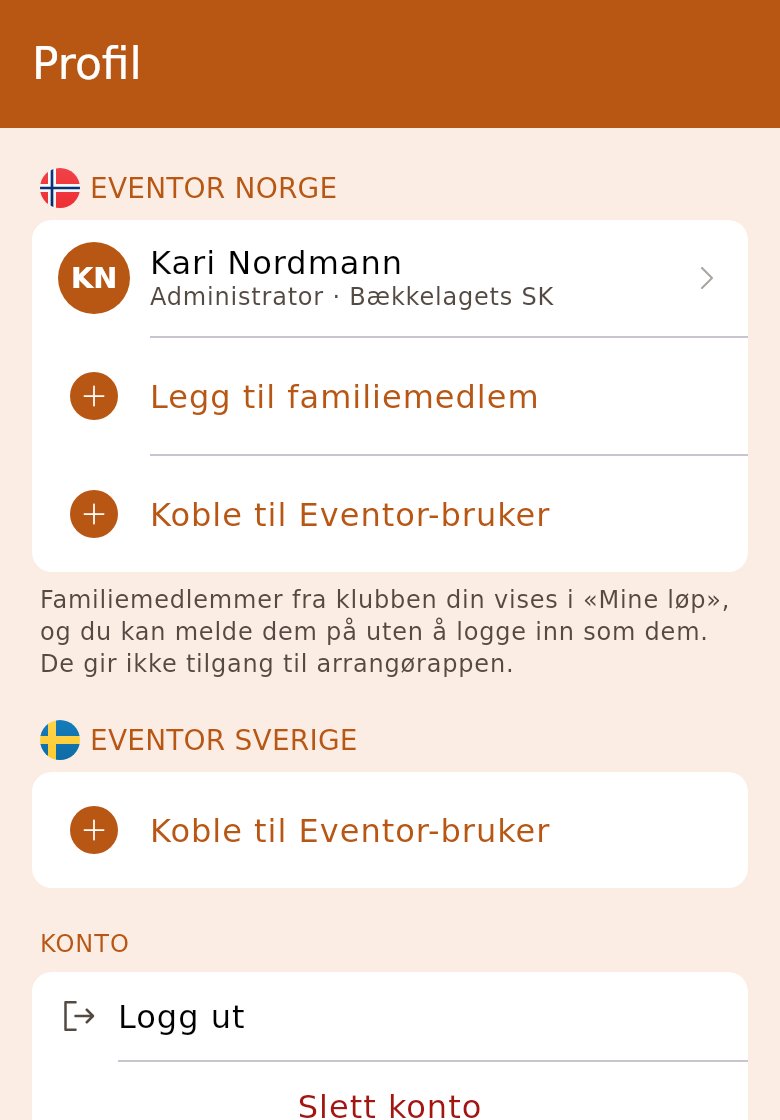
6. Add your family
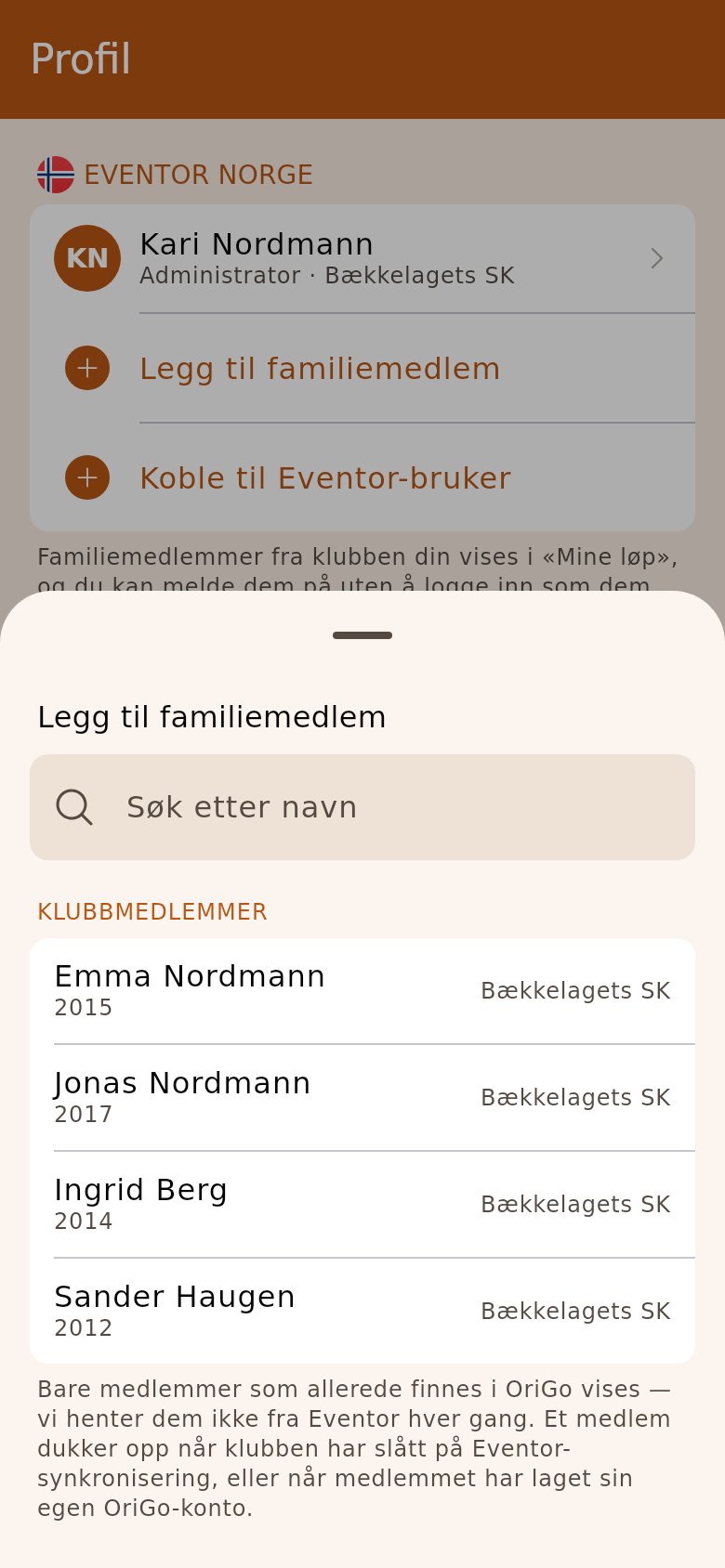
Section titled “6. Add your family”Do your children run in the same club as you? Tap «Add family member», search for the child and tap the name. You don’t need their Eventor login.
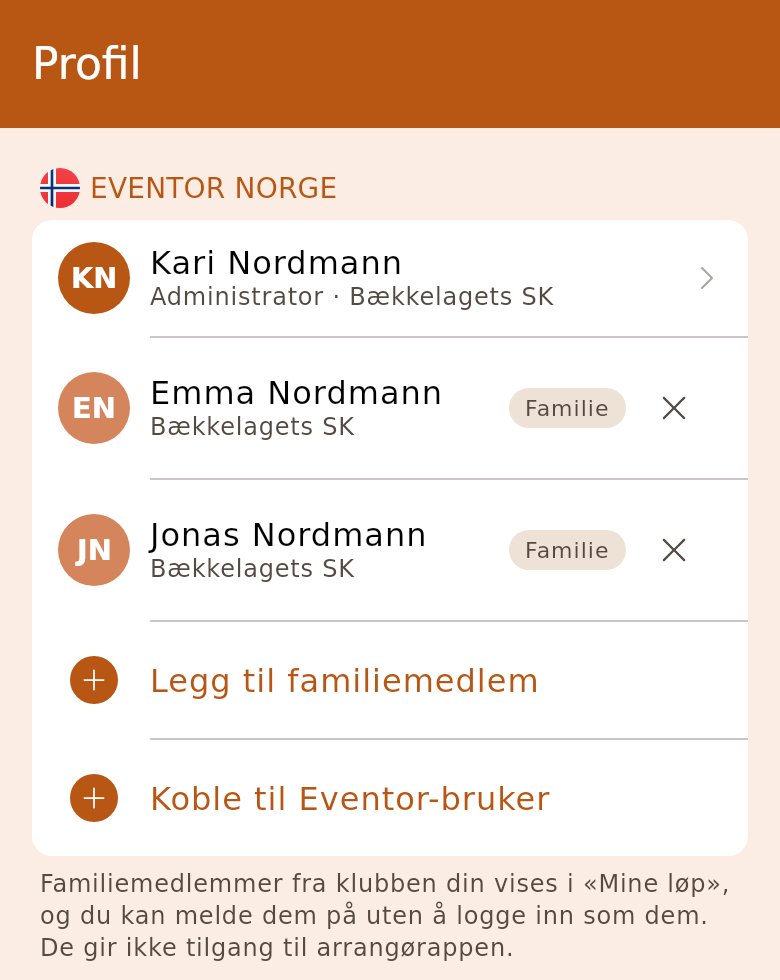
7. The family is on your account
Section titled “7. The family is on your account”Family members appear under you, labelled «Family». The cross after the name removes a family member.
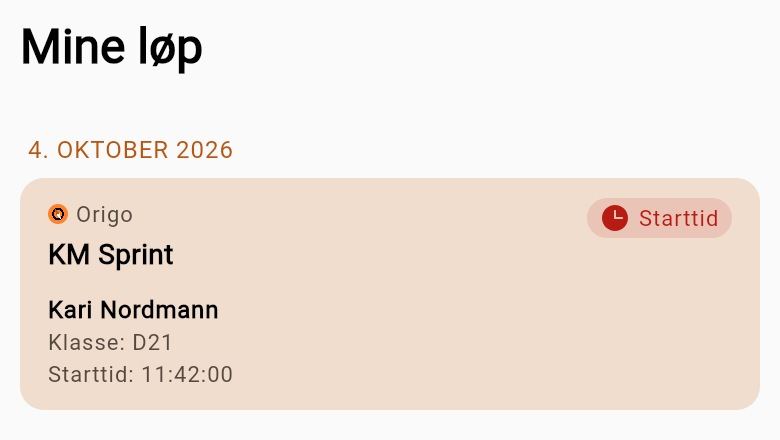
8. The races under «My races»
Section titled “8. The races under «My races»”The front page now shows the races you and your family are entered for, with class and start time, until two days after the race. Inside the race you also appear on the cards for entry, start and the live centre. When you enter in OriGo while logged in, your family is ready at the top, and you skip the Eventor login.
«Log out» and «Delete account» are under «Account» on the profile page.
Logging in with a password
If you’d rather skip the one-time code, you can set a password. The first time you log in, the app asks about it; if you skip it, you find it later under «Profile», «Set password». You get a code by e-mail first, so we know you own the address. Next time, tap «Sign in with password» under the e-mail field.
- The password must have at least 10 characters.
- If you have forgotten the password, log in with a one-time code as before and set a new one under «Set password».
- You get an e-mail every time the password is changed.
Changing your e-mail address
Under «Profile», tap «Change email» and type the new address. You get a code at both the old and the new address, and type in both. Your Eventor users and your family move with you to the new address.
- If you no longer have access to the old address, you can log in with the new one and connect your Eventor user again.
New club or wrong details
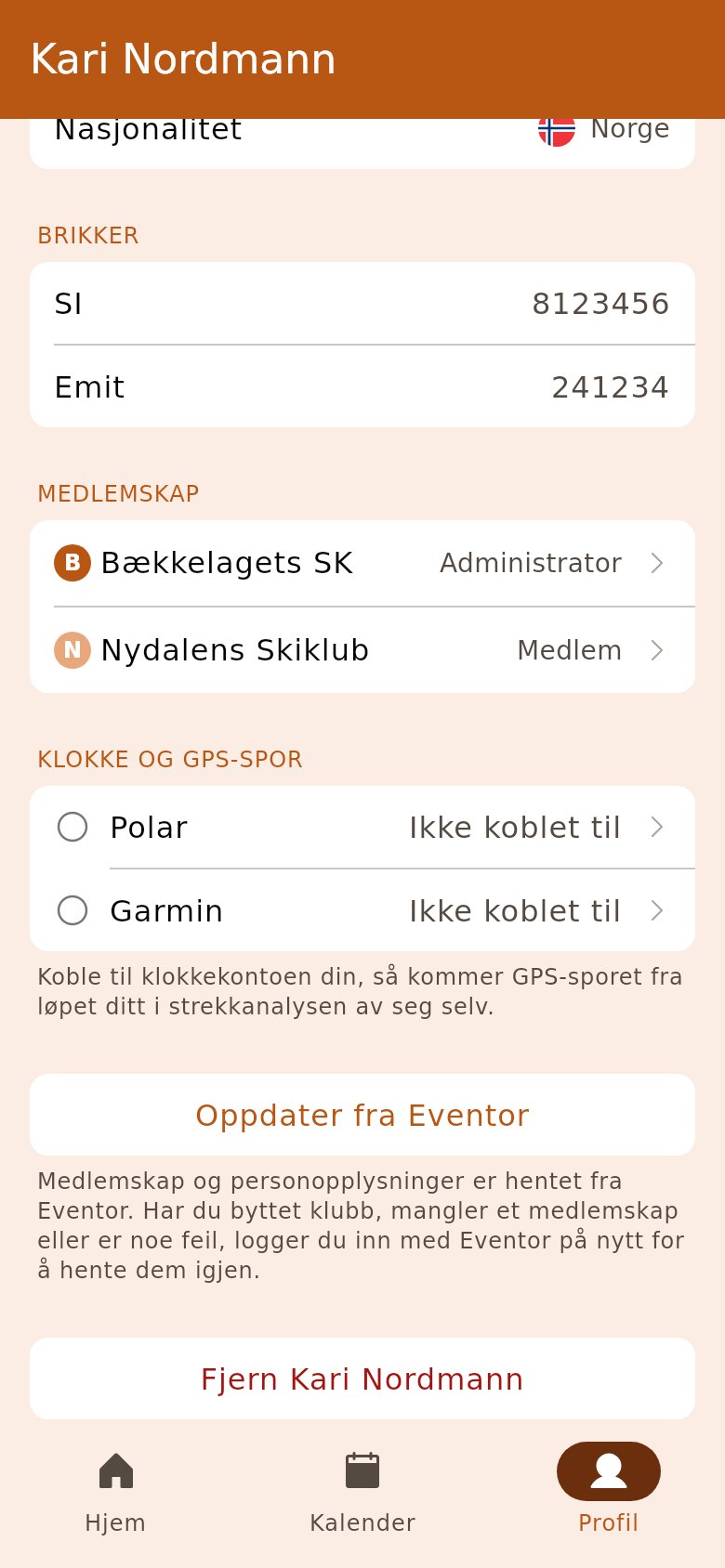
Your memberships and personal details were fetched from Eventor when you connected. If you have changed club, a membership is missing or something is wrong, tap your name under Eventor and then «Update from Eventor». Log in with Eventor, and the details are fetched again.
- If something is wrong in Eventor itself, correct it there first.
Family members
- You can only add members of a club you are a member of yourself.
- If the child changes club, or you leave the club, the child disappears from the list until you are in the same club again.
- You can have up to ten family members.
- A family member gives no access to the organiser app, not even if the child is a member of the organising club.
- If the child has their own Eventor user, you can also connect it with «Connect Eventor user». The child is then part of your account on the same footing as yourself.
- If you delete your account, the family links disappear. The child’s own account is not affected.