

Enter a race
When the organiser has opened direct entry in OriGo, you enter straight from your phone or browser — without creating an account. All you need is your Eventor username and password. You get your start time straight away, and on race day you follow the results live.
The screenshots show an example race, KM Sprint organised by IL Gneist.
1. Find the race
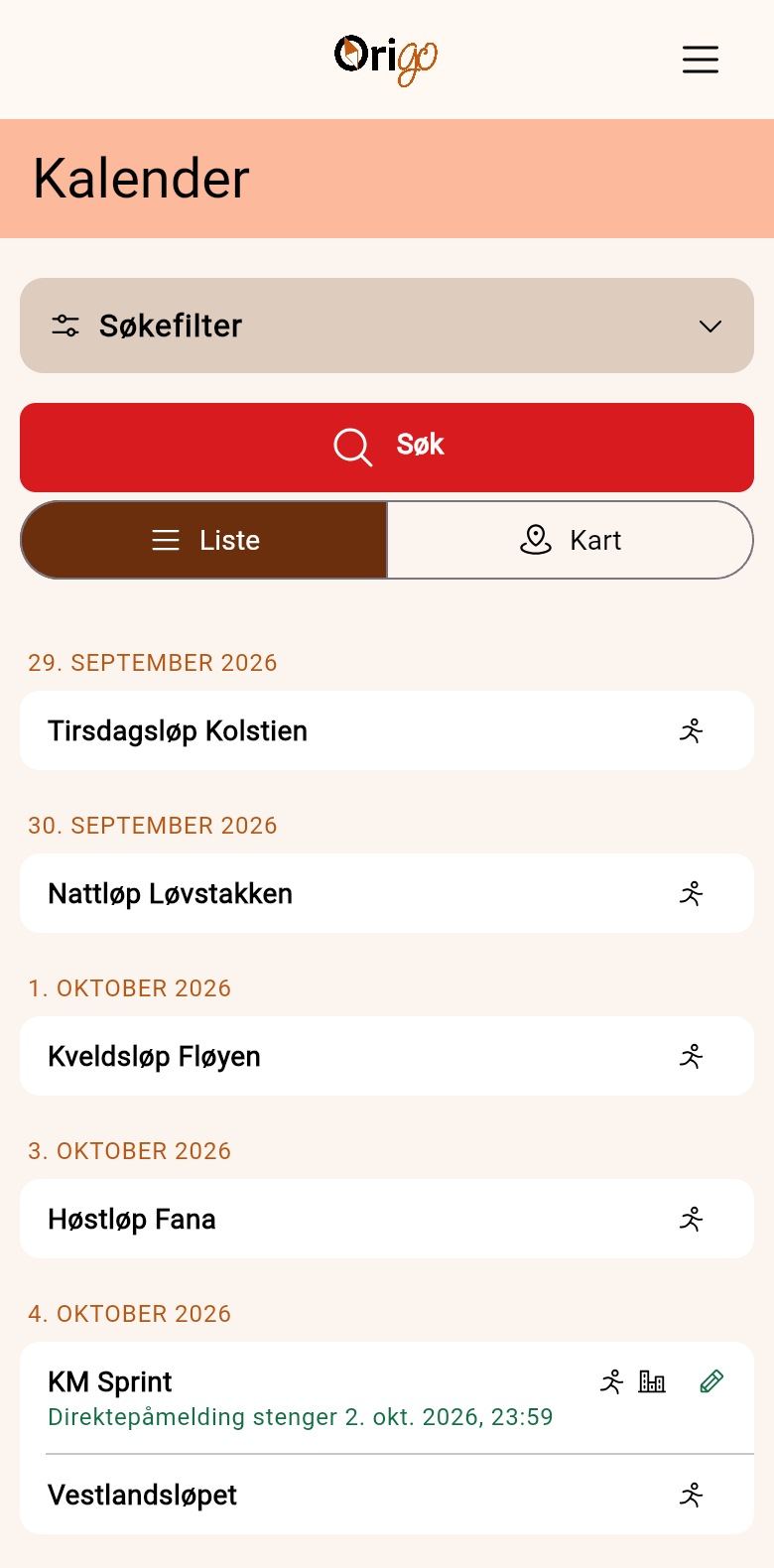
Section titled “1. Find the race”Open OriGo and go to «Calendar». Races you can enter directly have the deadline written under the name: «Direct entry closes …». Tap the race to open it.
2. Tap «Enter here»
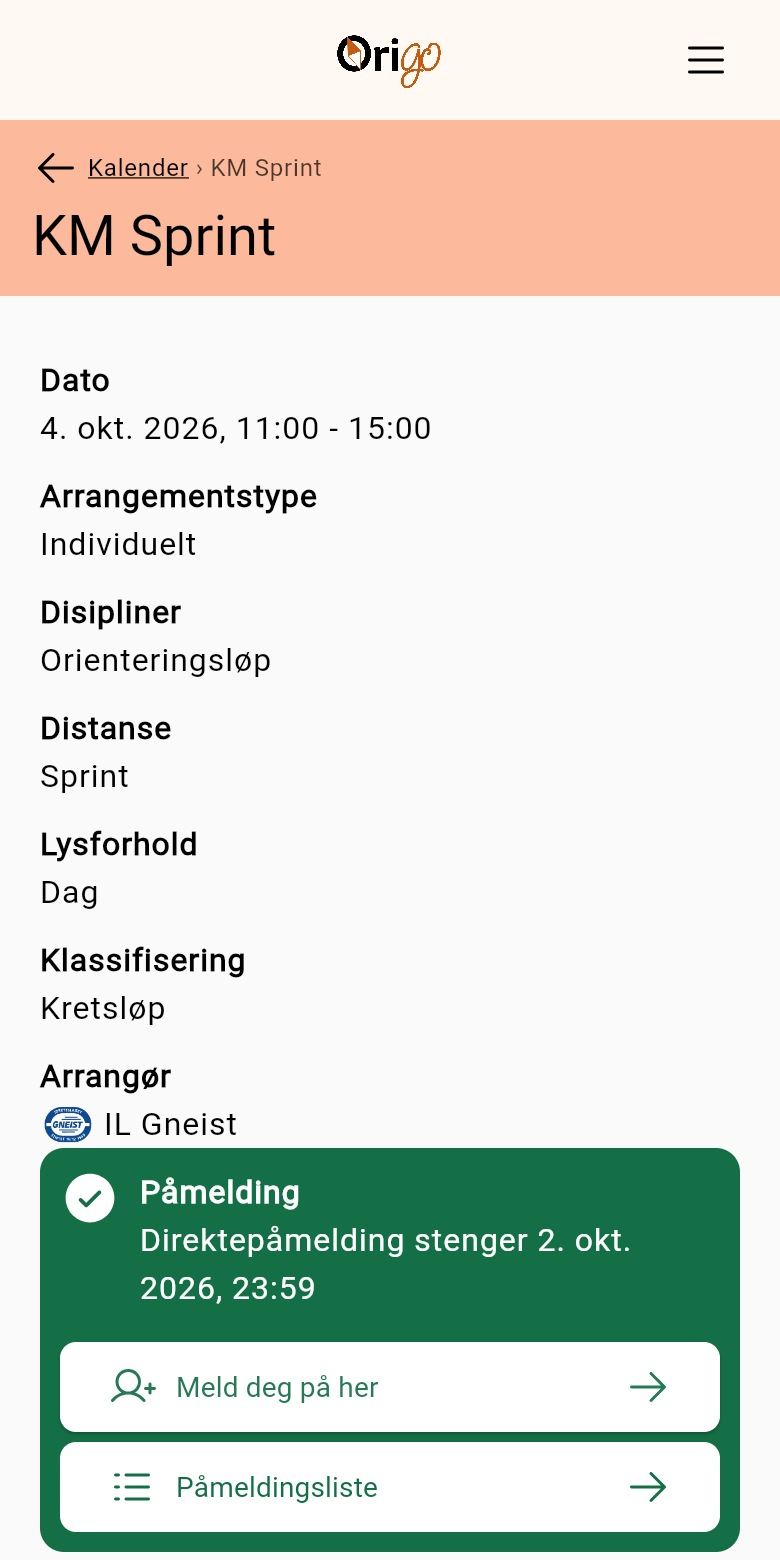
Section titled “2. Tap «Enter here»”The race page has the «Entry» card with the deadline for direct entry. Tap «Enter here». If entry is still open in Eventor, the button takes you there instead, and you enter in Eventor as usual.
3. Log in with Eventor
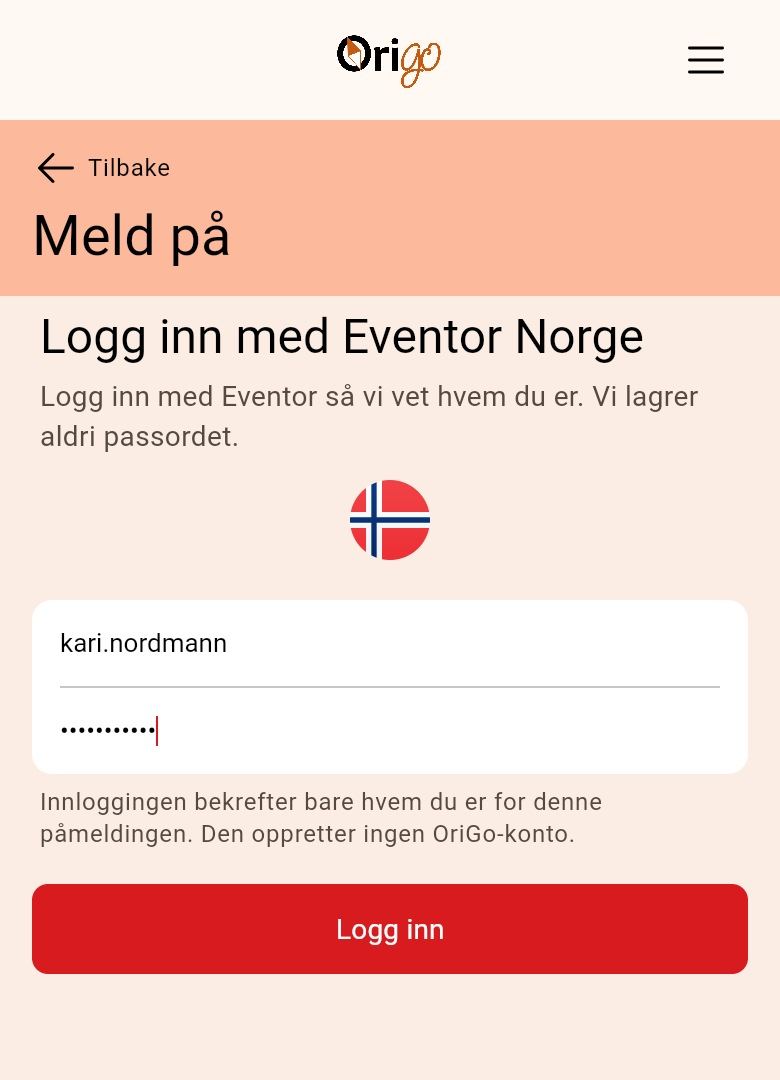
Section titled “3. Log in with Eventor”Type the username and password you use in Eventor, and tap «Log in». The login only confirms who you are for this entry: OriGo never stores the password and creates no account. If you have connected your Eventor user to an OriGo account and are logged in, you skip this step.
4. Check class and chip
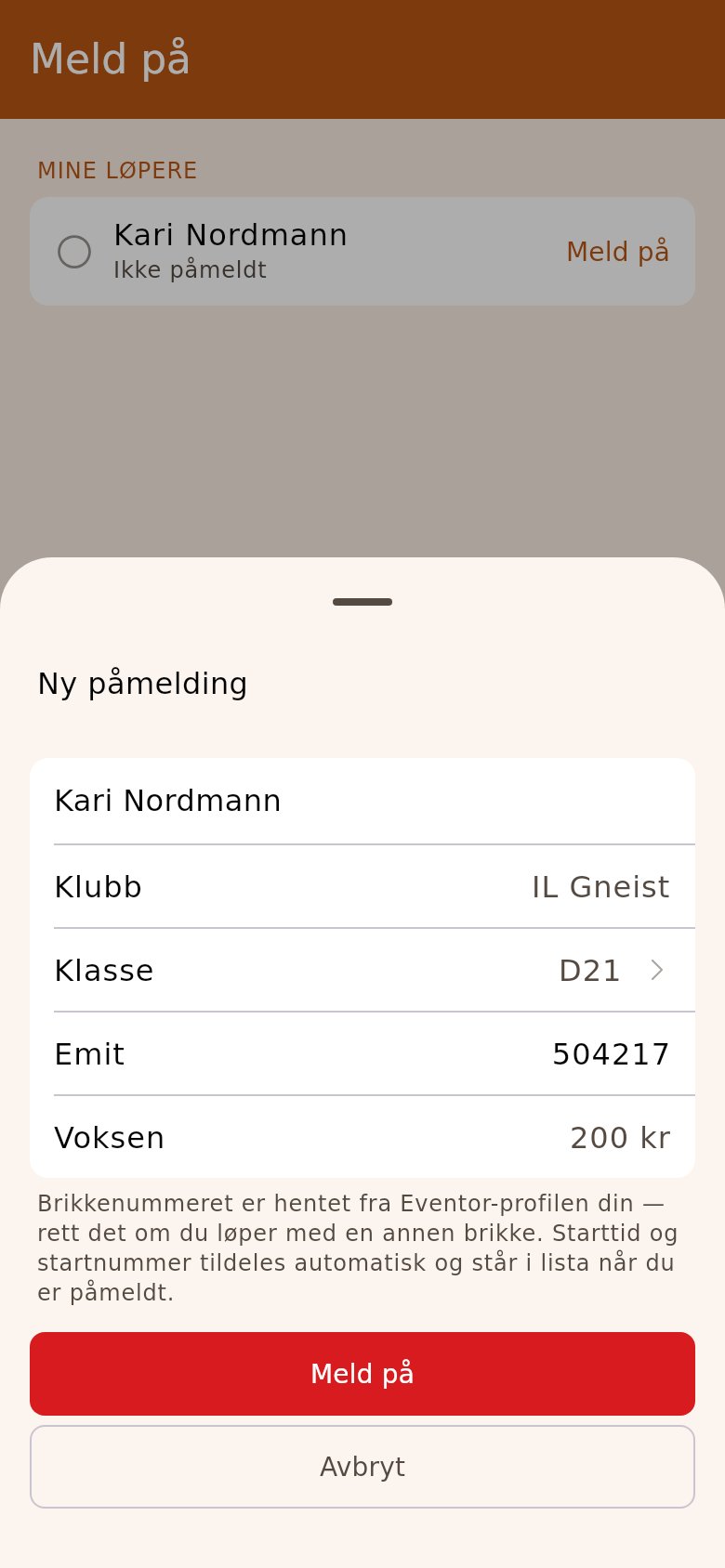
Section titled “4. Check class and chip”Under «My runners», tap «Enter» next to your name. Club, class and chip number come from your Eventor profile. If you run in another class or with another chip, correct it here. If you have no chip, leave the field empty and get a rental chip at the arena. If the organiser lets you choose your start time, choose it under «Start time» — «First available» gives you the earliest. Tap «Enter» in the form.
5. Get your start time straight away
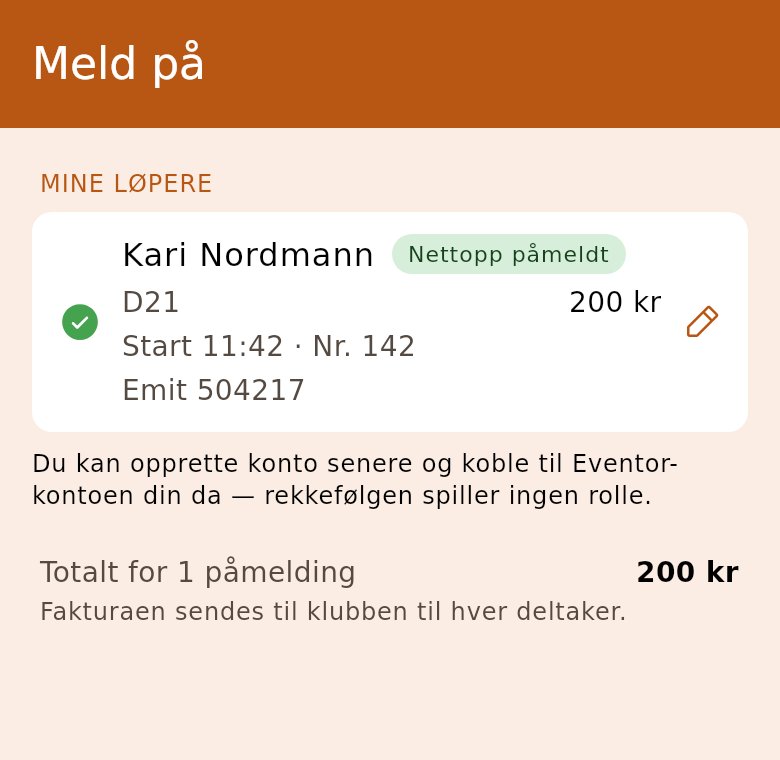
Section titled “5. Get your start time straight away”You are entered straight away, and the list is your receipt. Your name has a green tick and the label «Just entered», and the row shows class, start time and bib — you don’t have to wait for the start list to be published. To enter more people, tap «Enter» next to the next name.
6. Follow the results on race day
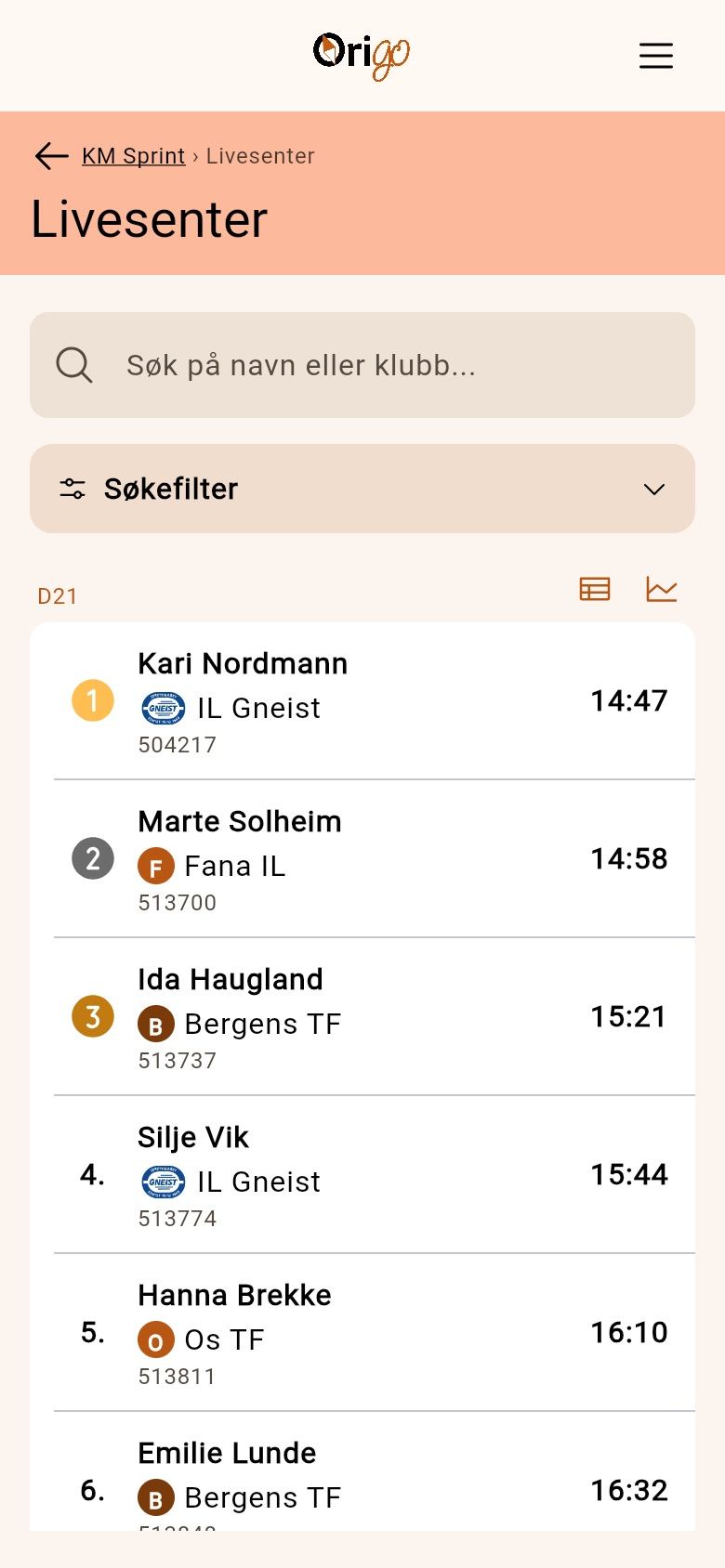
Section titled “6. Follow the results on race day”Open the race and choose «Live centre» — the card is on the race page from race day. The list updates itself: runners out on the course have their time ticking, and when someone finishes, their time and place appear at once — no need to reload the page.
7. Compare yourself with the others
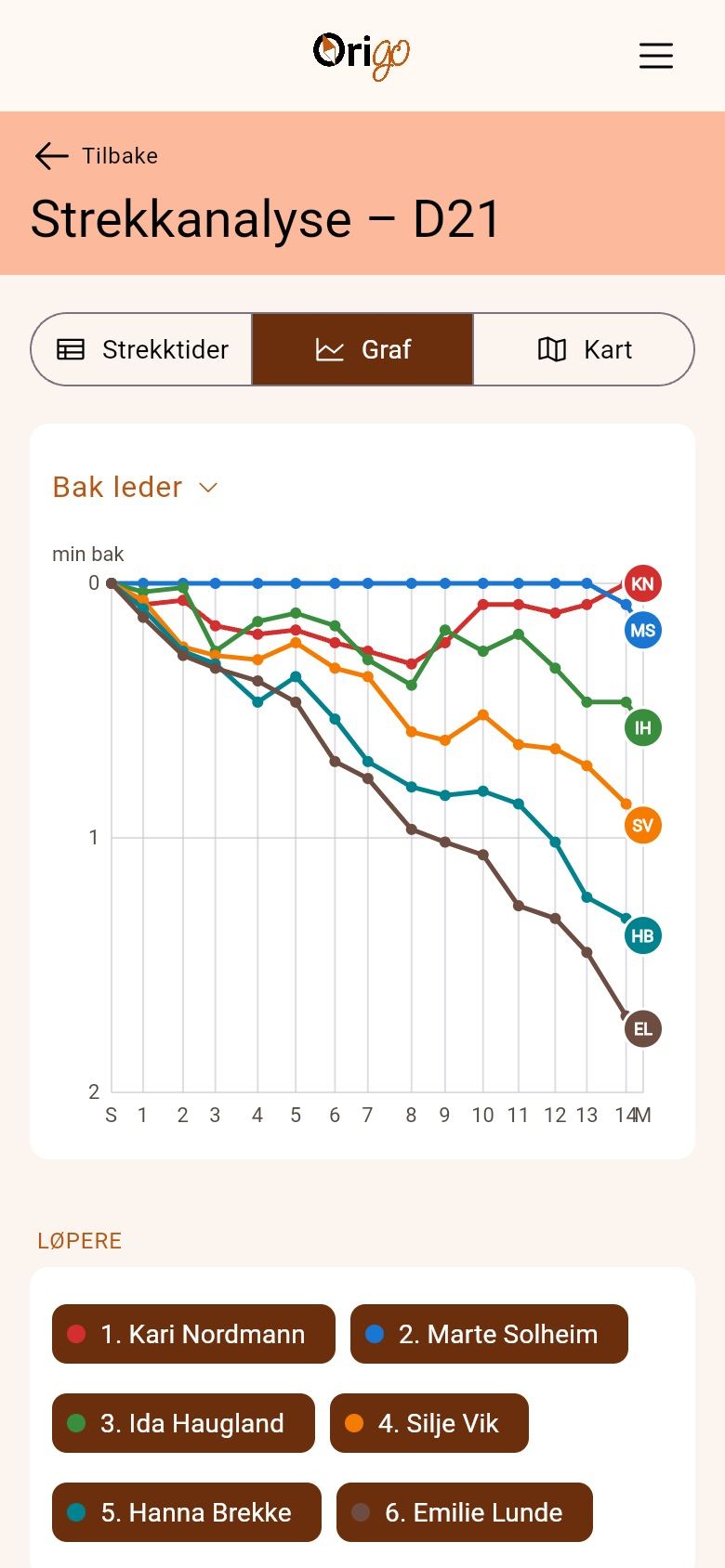
Section titled “7. Compare yourself with the others”Once the split times have been read from the chips, a table icon and a chart icon appear next to the class name. They open the split analysis: «Split times» shows the time at each control, and the «Behind leader» chart shows where you lost or gained time on the others. If the organiser has published the courses, you can see the legs on the map too.
Good to know
Section titled “Good to know”- Direct entry takes no payment in the app: the invoice goes to the club you are entered for. If you are not a member of any club, type your e-mail address in «Invoice e-mail» — the one from your Eventor profile is filled in already. You get an invoice by e-mail after the race and can pay by card.
- You can enter family and friends who are members of the same club as you, just like in Eventor — even without an OriGo account. See «Enter others in your club» below.
- To change class or chip, tap the pencil next to your name. Without an OriGo account you log in with Eventor again first.
- Direct entry closes at the time shown on the race. After the deadline, contact the organiser.
Without an Eventor account
Some organisers also take entries from runners without an Eventor account. Then «Enter without an Eventor account» appears under the login. There you type your name, year of birth and gender yourself, and choose class and chip. The entry has no club, and you pay yourself, with an invoice by e-mail. If you run for a club, tell the organiser at the desk, at the chip check or at the start, and they will add it.
Check that everything is right before you tap «Enter»: you cannot change an entry without an Eventor account yourself afterwards. If something needs correcting, contact the organiser.
Enter others in your club
Logging in with Eventor tells OriGo which clubs you are a member of. Then you can enter others in the same clubs, without them or you needing an OriGo account.
- Choose «Club» at the top. Under each of your clubs are the people already entered.
- Tap «Add entry» under the club, and choose the runner under «Club members». Class and chip are filled in from Eventor, and you correct them if needed.
- Tap «Enter» in the form. The runner is entered straight away and appears under the club with the label «Just entered». Do the same for the next one.
- Only members who already exist in OriGo can be chosen. If you can’t find someone, they enter themselves with their own Eventor login.
Relay: enter a team
In a relay you enter teams, not yourself. A team belongs to the club: you enter for a club you are a member of, with runners from the club. You log in with Eventor as usual, or with your OriGo account.
- Under the club’s name are the teams the club has already entered. Tap «Add team».
- The team name is suggested, for example «IL Gneist 1». You can change it. If the race has several relay classes, choose the class.
- Choose the leg at the top, tap «Choose runner» and choose the runner. The chip is filled in from Eventor. A leg can be left empty, and a runner without a chip gets a rental chip at the arena.
- Tap «Enter team». The team then appears in the list with a green tick.
- To change a runner, tap the pencil next to the team and «Save changes». This works until the team has started; after that, contact the organiser.
- A team with runners from several clubs is entered at the organiser’s desk. It appears under each of the clubs, with all the clubs next to the class, and you can correct it when you are a member of one of them.