
Read chips at the finish
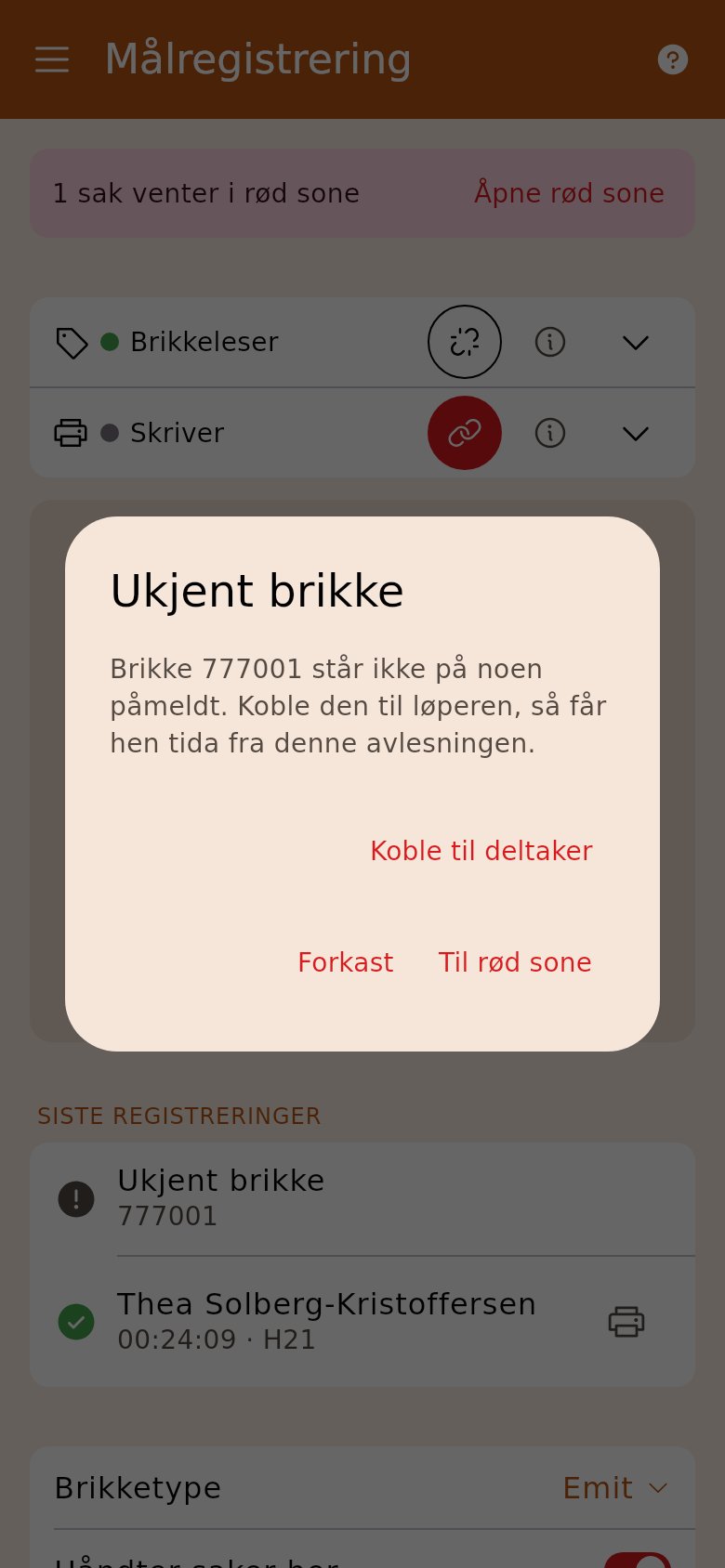
«Finish registration» reads the chip, checks the course, saves the result and prints the split time slip — all when the chip is put on the reader. Leave the screen open for the whole race.
1. Connect the chip reader and printer
Section titled “1. Connect the chip reader and printer”Open «Finish registration» and tap the link icon next to the chip reader and next to the printer. The reader works in the desktop app, on Android and in Chrome and Edge.
2. Put the chip on the reader
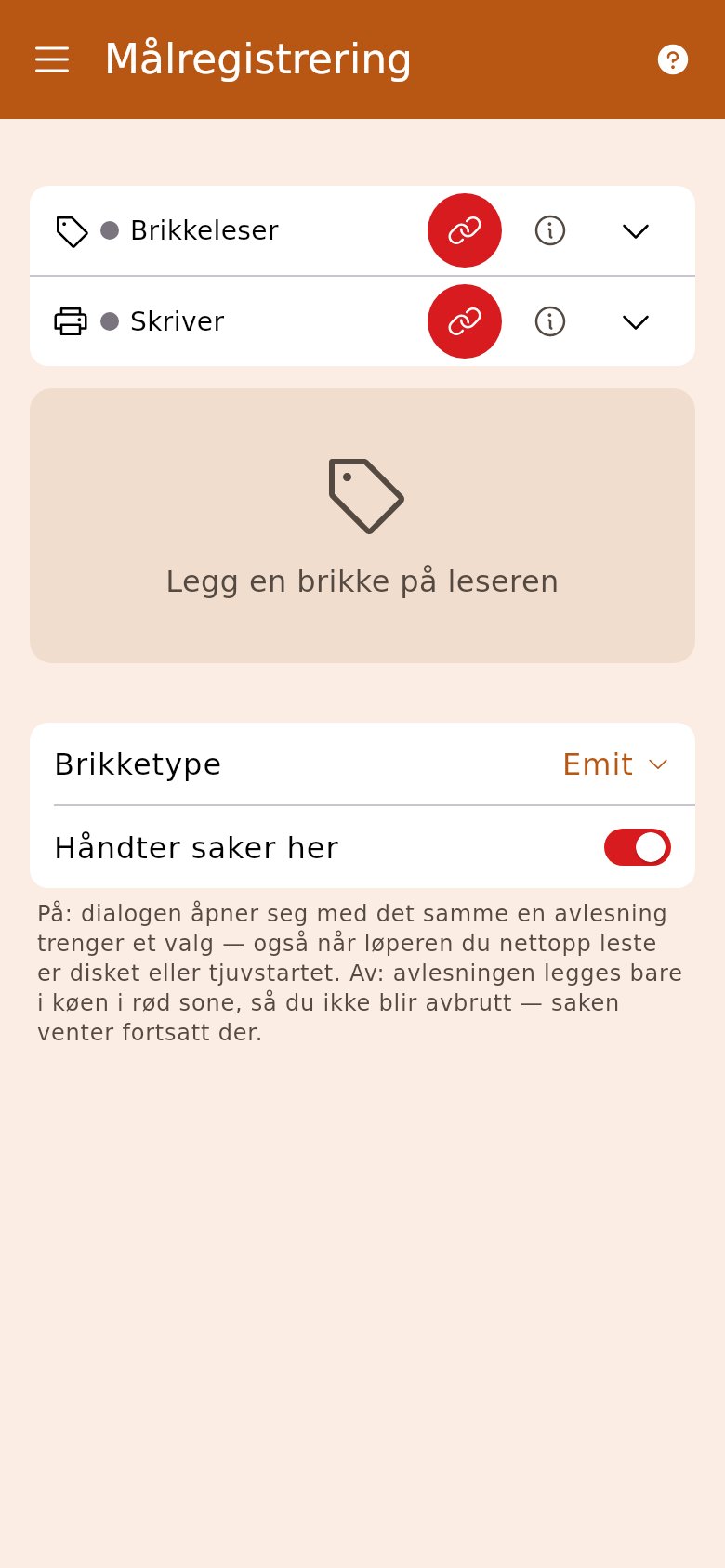
Section titled “2. Put the chip on the reader”The result comes at once: time, place and split times. The slip prints by itself.
3. Send a disqualification to the red zone
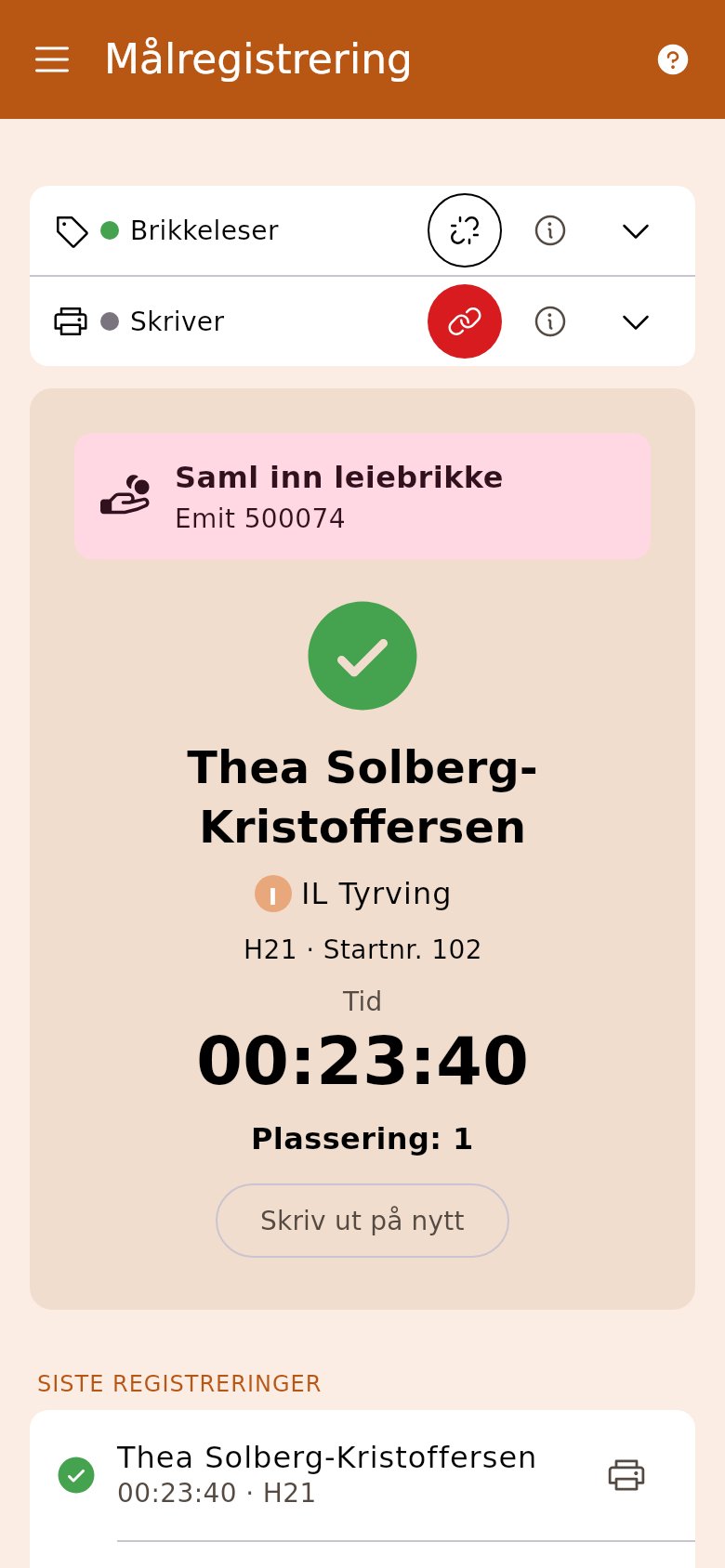
Section titled “3. Send a disqualification to the red zone”If the runner is missing a control, «Send the runner to the red zone» appears at the top with the control concerned. The case stays in «Red zone» until someone has talked to the runner.
4. Link an unknown chip
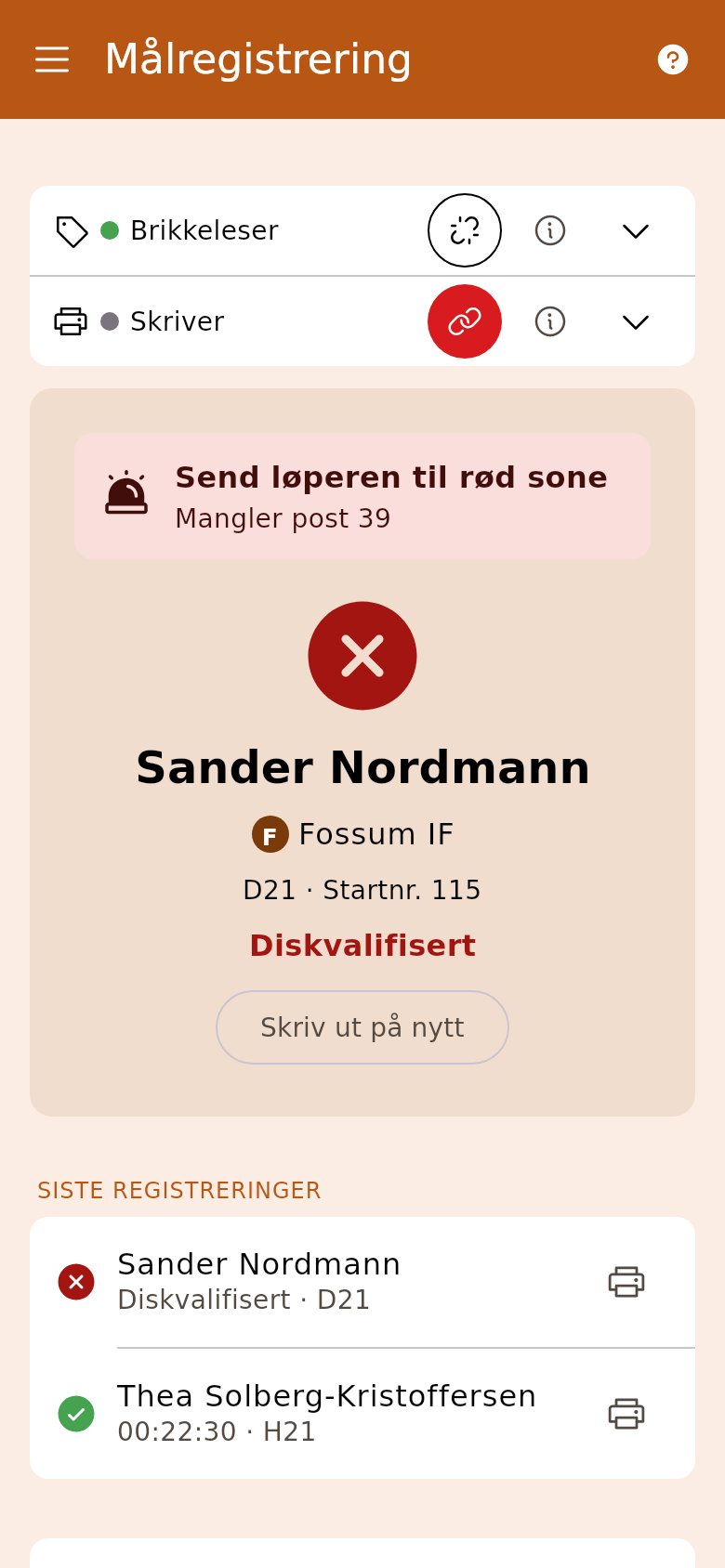
Section titled “4. Link an unknown chip”If the chip doesn’t belong to anyone entered, tap «Link to competitor» and search for the runner — or enter them from there. The readout runs again by itself. «To red zone» leaves the case waiting there for later.